Midjourney
Midjourney --stylize Parameter Ultimate Guide: How to Adjust Values from 0 to 1000
Midjourney.ing6 min read
Contents+
In Midjourney, --stylize (short form --s) is the dial for how hard the model’s default aesthetics lean into your image. Lower values stay closer to your literal Midjourney prompt; higher values look more “finished,” but can drift from what you wrote. The usual range is 0–1000. This guide maps those numbers onto a 2026 Midjourney V8.2 workflow—when to move the dial, and how to combine it with --raw, Personalization, and SD → Run as HD—so you are not guessing in the dark.
For the wider parameter map, see V6 / V7 / V8.2 comparison and the V8.1 parameters cheatsheet. For the end-to-end loop, start with How to Use Midjourney V8.2.
What --stylize actually changes
Think of it as how strongly Midjourney’s house taste wraps the shot.
| Direction | What you tend to get |
|---|---|
| Lower stylize | More obedient framing and light; plainer, more documentary |
| Higher stylize | Stronger color harmony, contrast, cinematic or illustrative polish—and more chance of ignoring tiny prompt details |
With --raw |
Raw reduces default “beauty filter”; raising stylize then often means “tasteful but still literal” |
| With Personalization | A bit more stylize helps your taste profile lead the look |
It is not a sharpness control (that is SD / Run as HD), and it is not the old --q flag. Treating stylize like “quality” is a classic beginner trap—see beginner mistakes.
Practical bands from 0 to 1000
These are creator-facing working ranges, not lab absolutes. Compare with one prompt and only change --stylize.
| Band | Feel | Best for |
|---|---|---|
| 0–50 | Almost no packaging; bare, “manual-like” | Extreme tests, strict briefs, minimal model invention |
| 50–100 | Light polish, still obedient | Ecommerce heroes, product stills, architecture/interiors (often with --raw) |
| 100–180 | Comfortable near-default zone | Lifestyle, documentary-leaning commercial work |
| 180–280 | Clearly “designed” color and light | Cinematic portraits, concept KV, illustration / anime backgrounds |
| 280–500 | Heavy aesthetics; details may get stylized away | Strong style exploration, poster energy, art tests |
| 500–1000 | Highly stylized; literal obedience drops | Experiments and mood hunting—drop back before finals |
Most templates on this site land around 70–250: lower for commercial realism, higher for illustration, anime, and Ghibli-like landscapes. See ecommerce cases, anime cases, and the Ghibli landscape guide.
Same prompt, three stylize passes
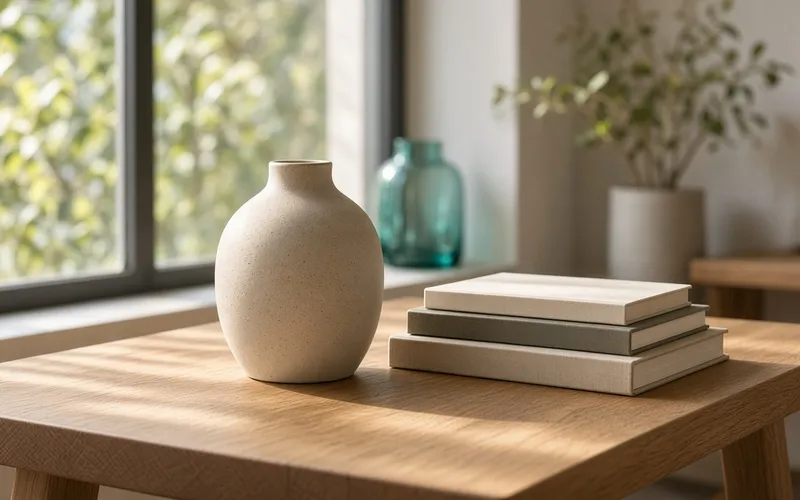
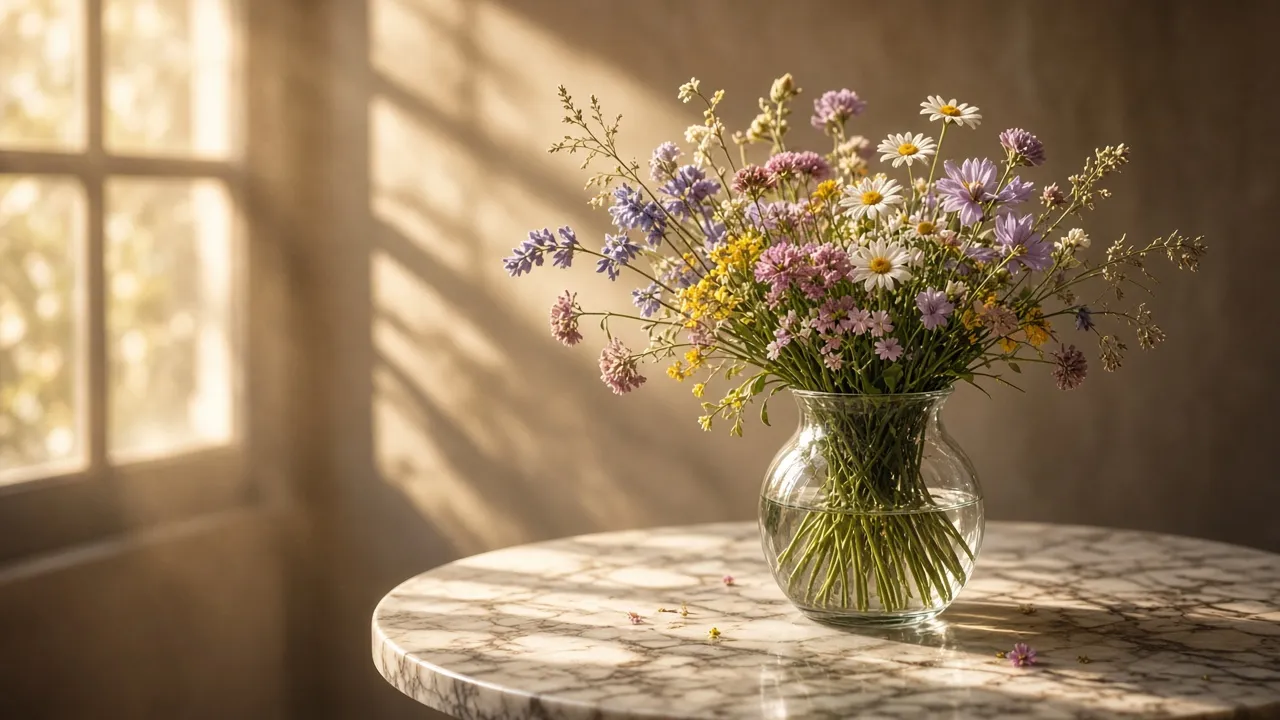
Cover-adjacent still life—only the number changes:
a glass vase with soft wildflowers on a sunlit marble table, soft window light from the left, shallow depth of field, quiet editorial still life --stylize 80a glass vase with soft wildflowers on a sunlit marble table, soft window light from the left, shallow depth of field, quiet editorial still life --stylize 200a glass vase with soft wildflowers on a sunlit marble table, soft window light from the left, shallow depth of field, quiet editorial still life --stylize 450How to read the grids:
- 80 — materials and layout stay close to the brief (catalog / product direction)
- 200 — more editorial harmony; often publishable as a hero still
- 450 — gorgeous, but the flowers and glass may stop matching “the specific vase you meant”
Explore in SD, then Run as HD on winners—HD vs SD, 2026 AI art workflow.
Starting values by job
| Job | Start here | Notes |
|---|---|---|
| Ecommerce / product / seamless | --raw --stylize 50–100 |
Name materials clearly |
| Architecture / interiors | --raw --stylize 70–120 |
Spell out light direction |
| Documentary portrait / lifestyle | --stylize 80–150 |
Toggle Raw if you want less “beauty grade” |
| Cinematic portrait / KV | --stylize 150–220 |
Skip empty adjective stacks |
| Illustration / anime / pastoral anime landscapes | --stylize 200–280, Raw usually off |
Keep one primary medium phrase |
| Aggressive poster tests | --stylize 300–500 + brief high --chaos |
Lower both before delivery |
Prompt structure: prompt tips, V8.2 prompt guide. Style menu: 25-prompt aesthetic review.
Pairing with --raw, Personalization, and SREF
With --raw
- Literal commercial realism: Raw on, stylize in 50–120
- Painted / anime energy: Raw off, stylize in 200–280
- Raw + stylize 800 at once is rarely useful—you get “plain and weird”
With Personalization
After Personalization is on, nudge stylize up so your profile can lead. If results feel “too you” and off-brief, drop stylize a band before rewriting the whole prompt.
With SREF / Moodboards
Lock series look with SREF first; use stylize as a fine tune, not a 100→800 leap every image. Guide: SREF & Moodboards.
A five-minute tuning loop
- Write subject → camera → light → materials (few empty words)
- Pick a starting band from the table above
- Same prompt, three SD passes (e.g. 80 / 200 / 400)
- Nudge ±30–50 around the winner, then Run as HD
- If style jumps every time: freeze stylize and attach SREF instead of stacking adjectives
Deeper scene packs: portrait cases, Ghibli landscapes.
Myths to drop
- Stylize = resolution — sharpness is an SD/HD decision, not a race to 1000.
- Start at 1000 — obedience collapses and finals get harder to control.
- Illustration with Raw + low stylize — often turns into a photoshoot.
- Product at 400+ without Raw — packaging buries SKU detail.
- Change prompt and stylize every round — you will never know what worked.
Closing
Midjourney --stylize is a taste dial, not a quality trophy. Pick the delivery type, pick a band, then A/B the same sentence. Save the range table into your Midjourney parameters checklist, keep exploration in SD, and finish with Run as HD—that beats hunting for one mythical “perfect number.”
Next: run the vase prompt at 80 / 200 / 450 in SD, note your team’s sweet spot, and retest the real brief on Midjourney.ing. For version-migration context, revisit how to choose V6, V7, and V8.2.