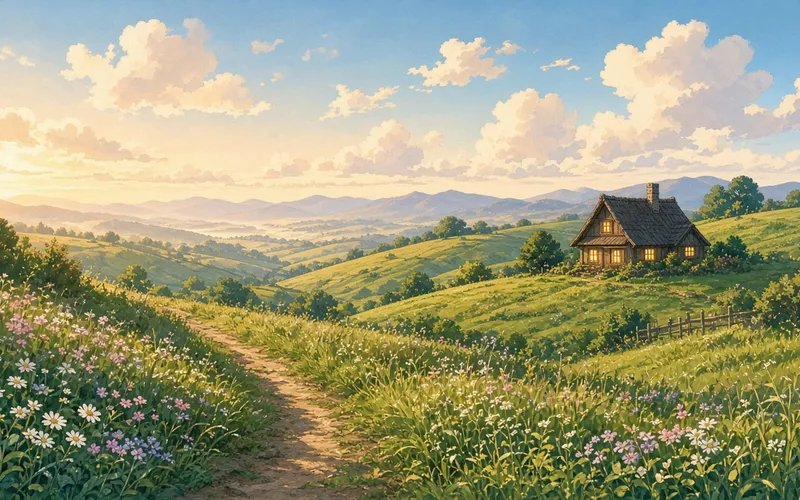
Midjourney AI
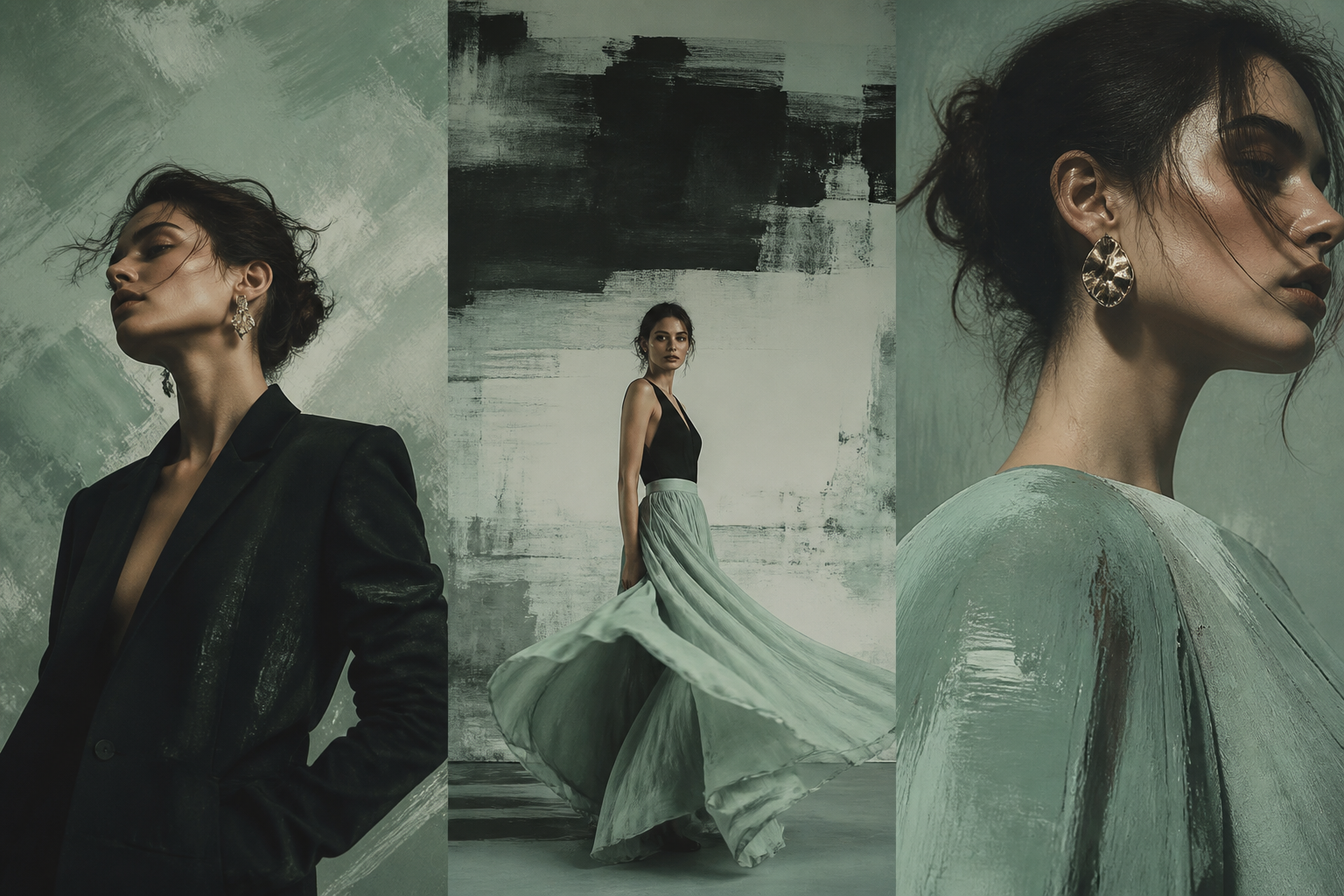
Photorealistic portrait
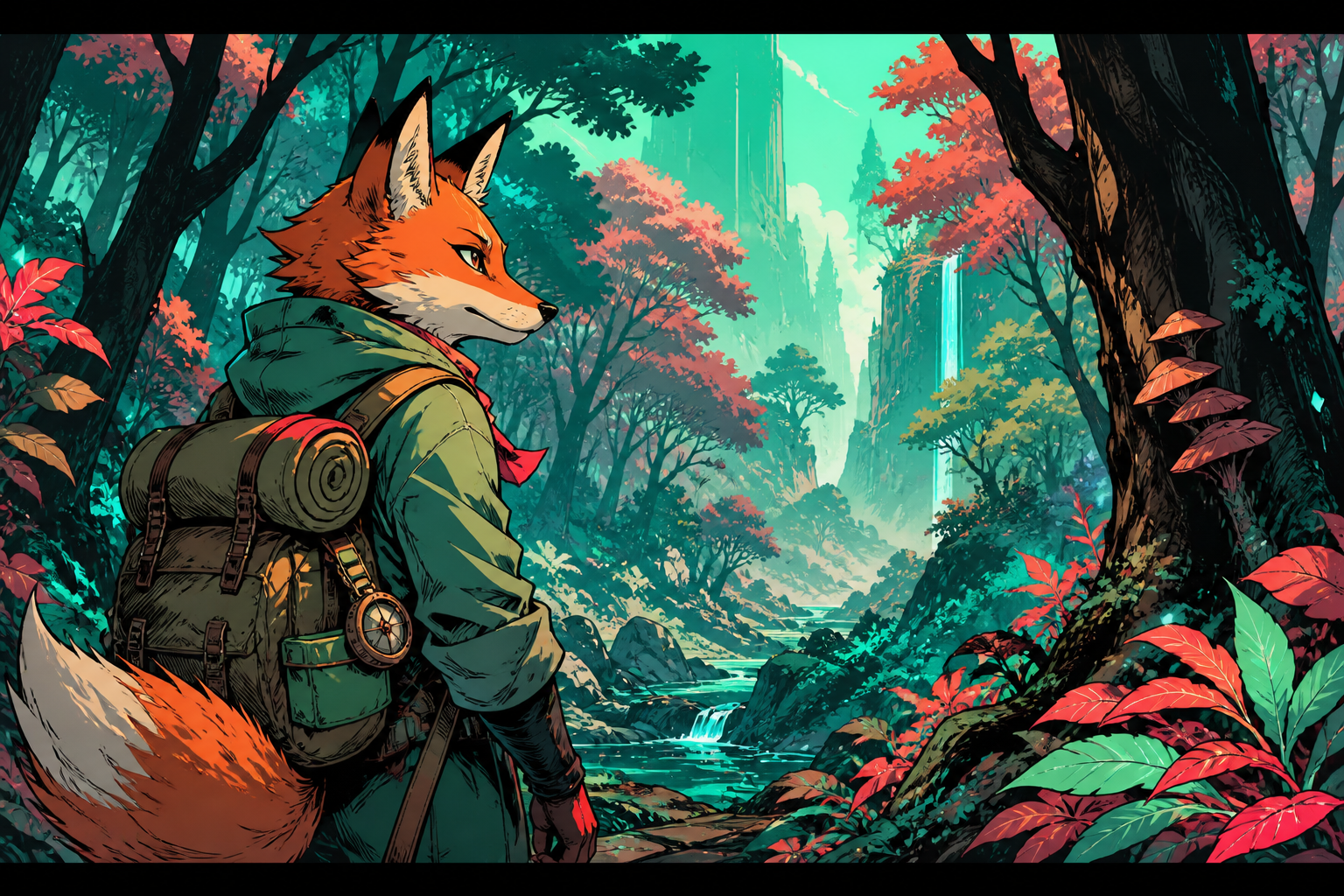
Illustration style
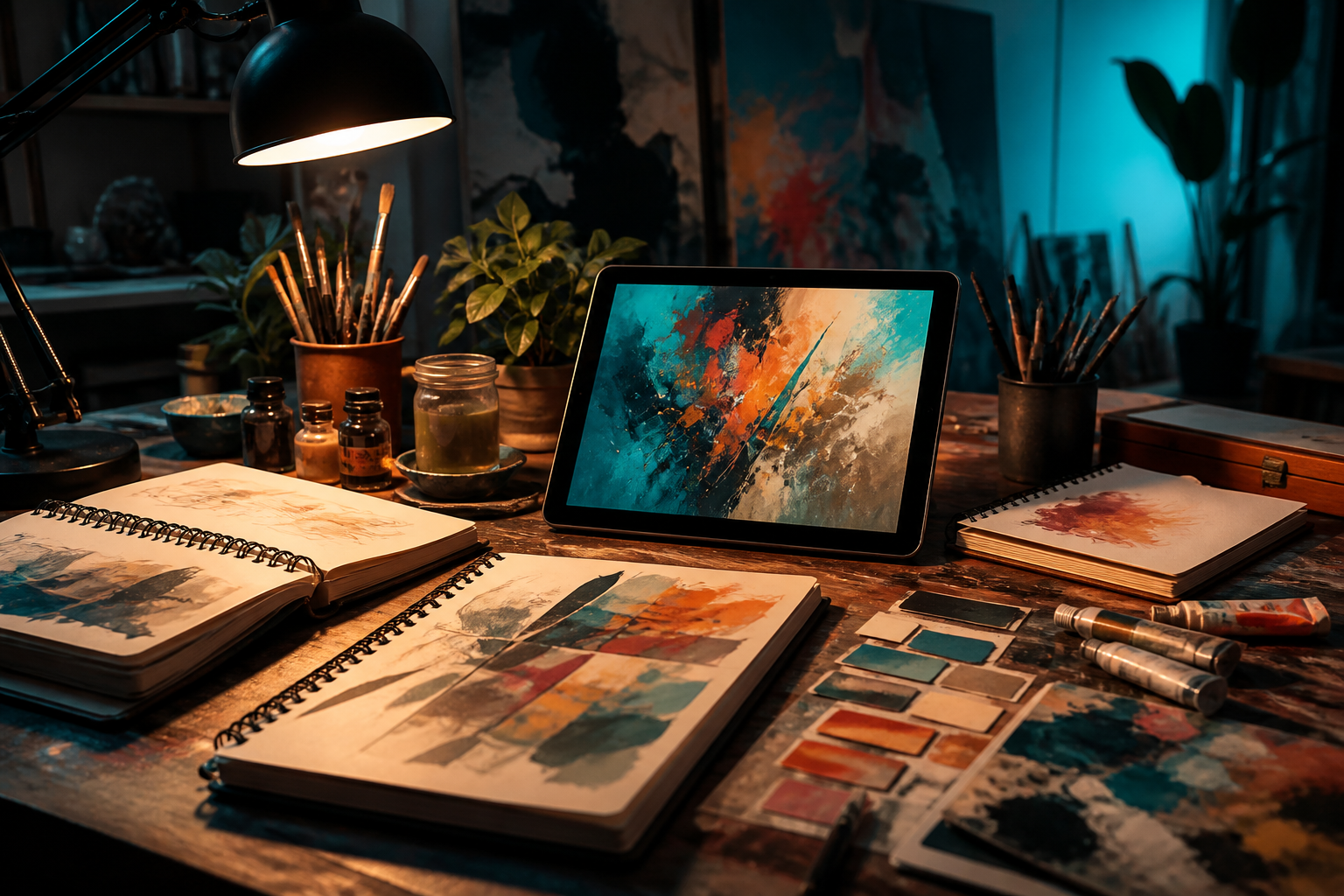
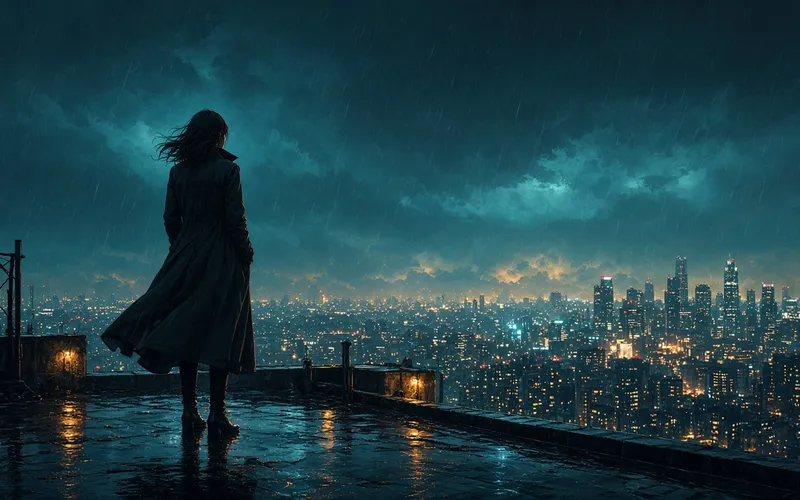
Concept art
Anime style
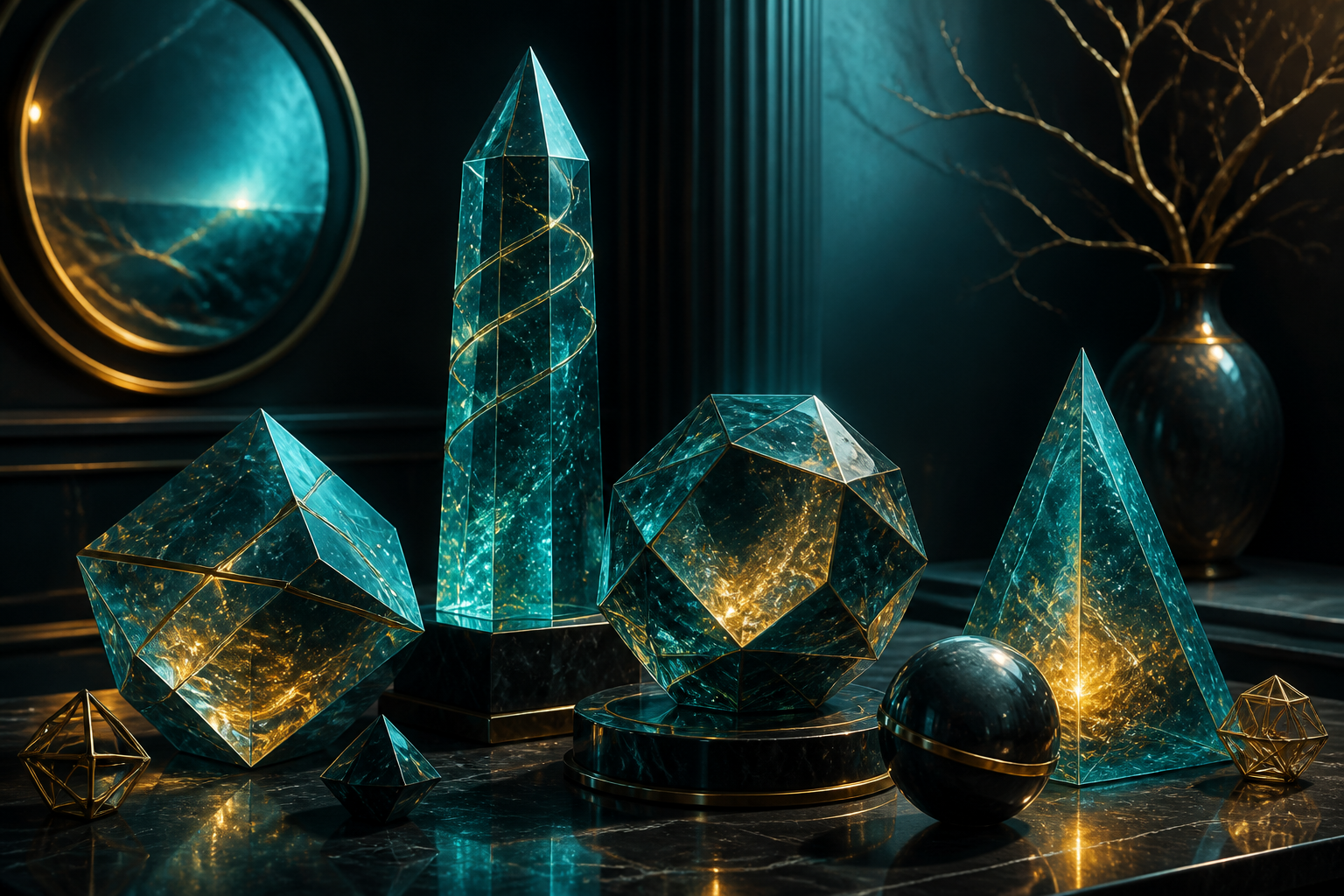
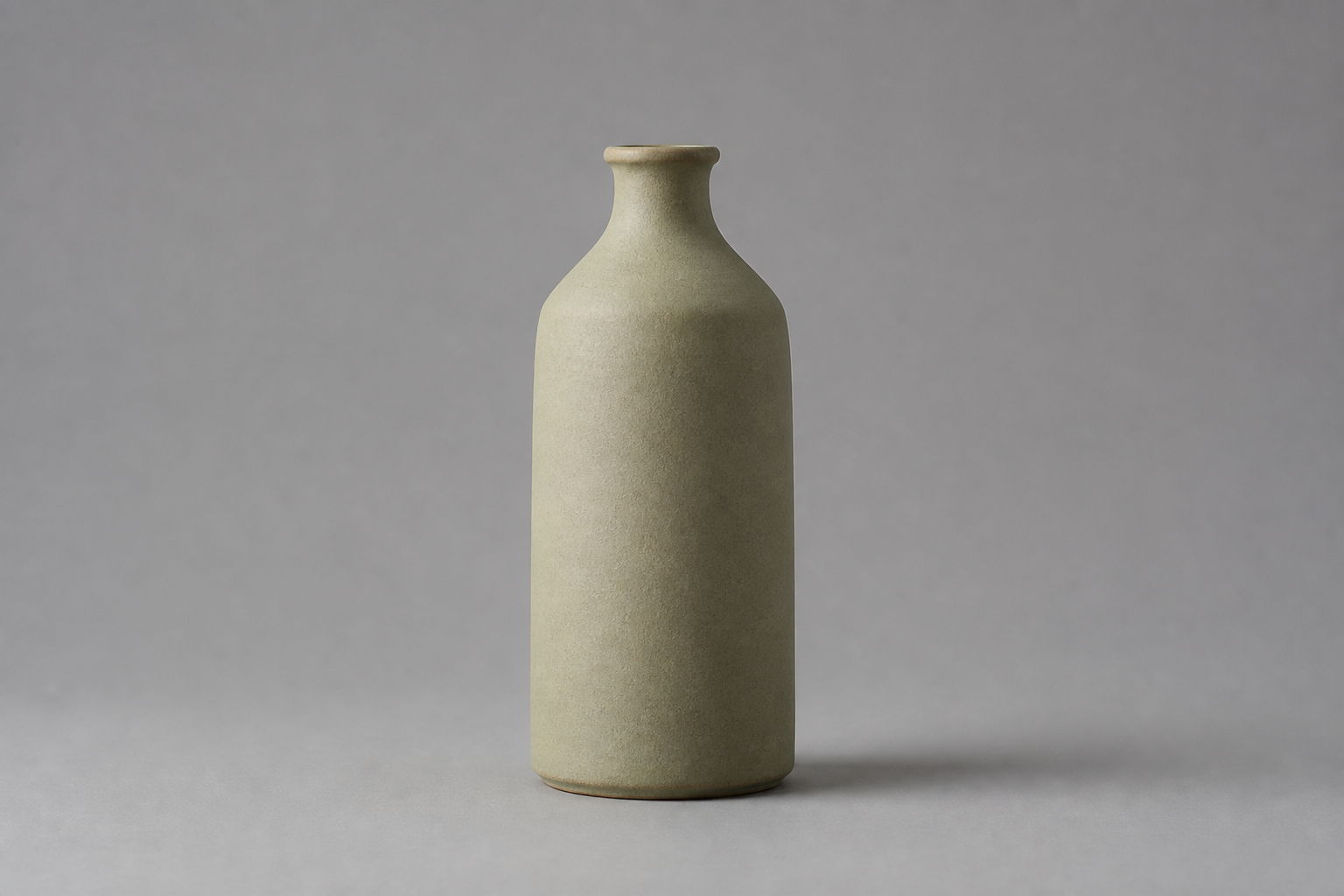
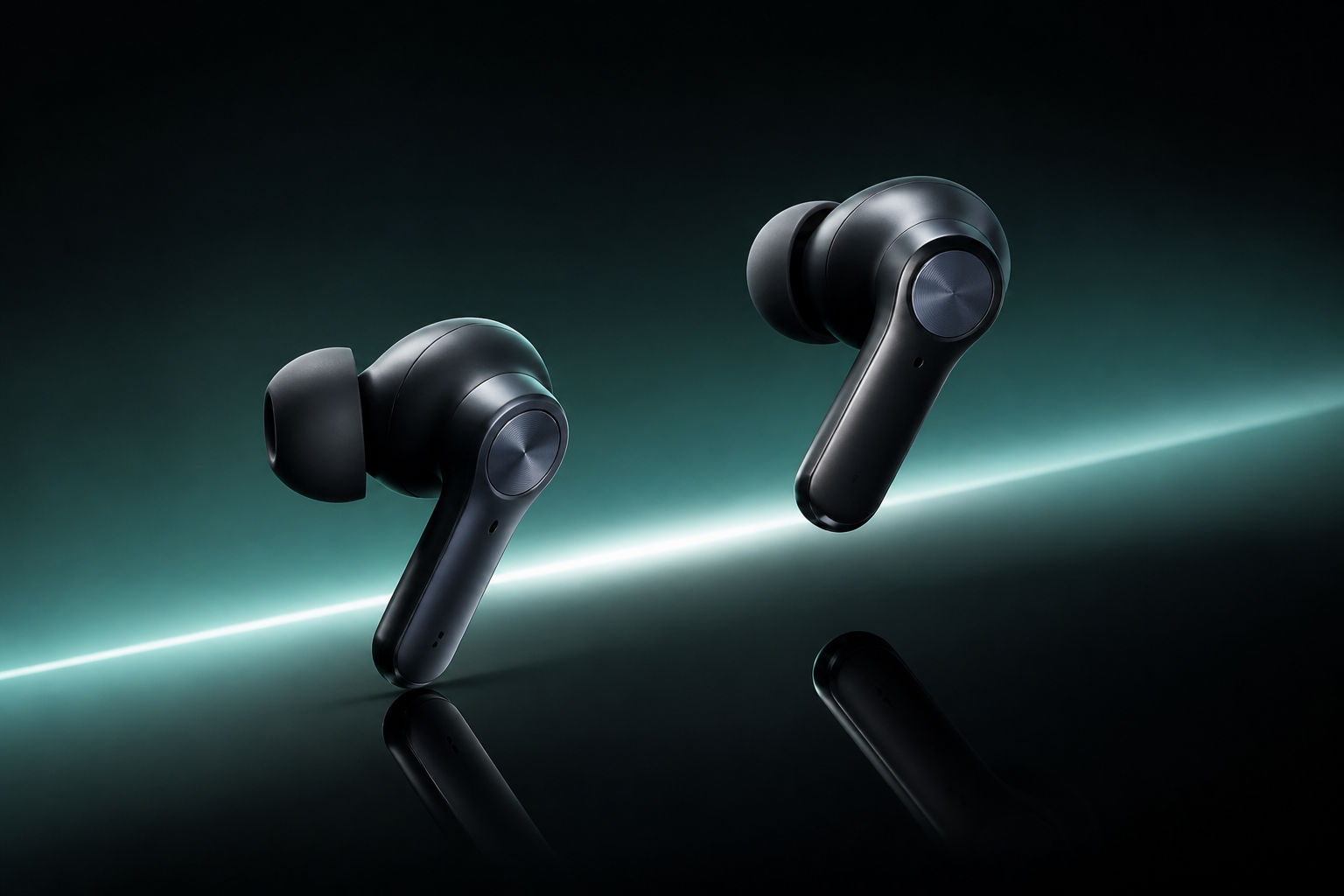
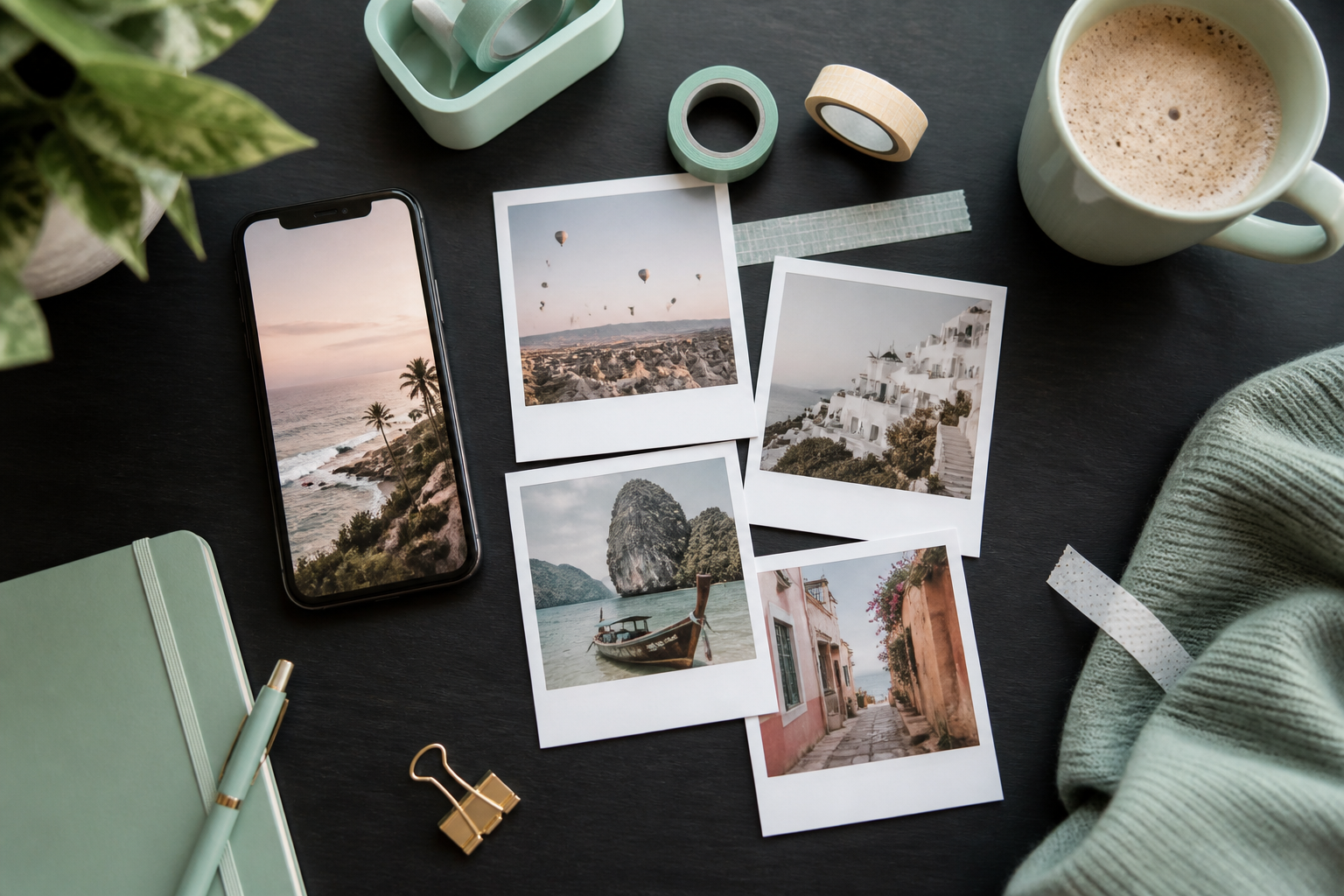
Product still life
Architectural interior
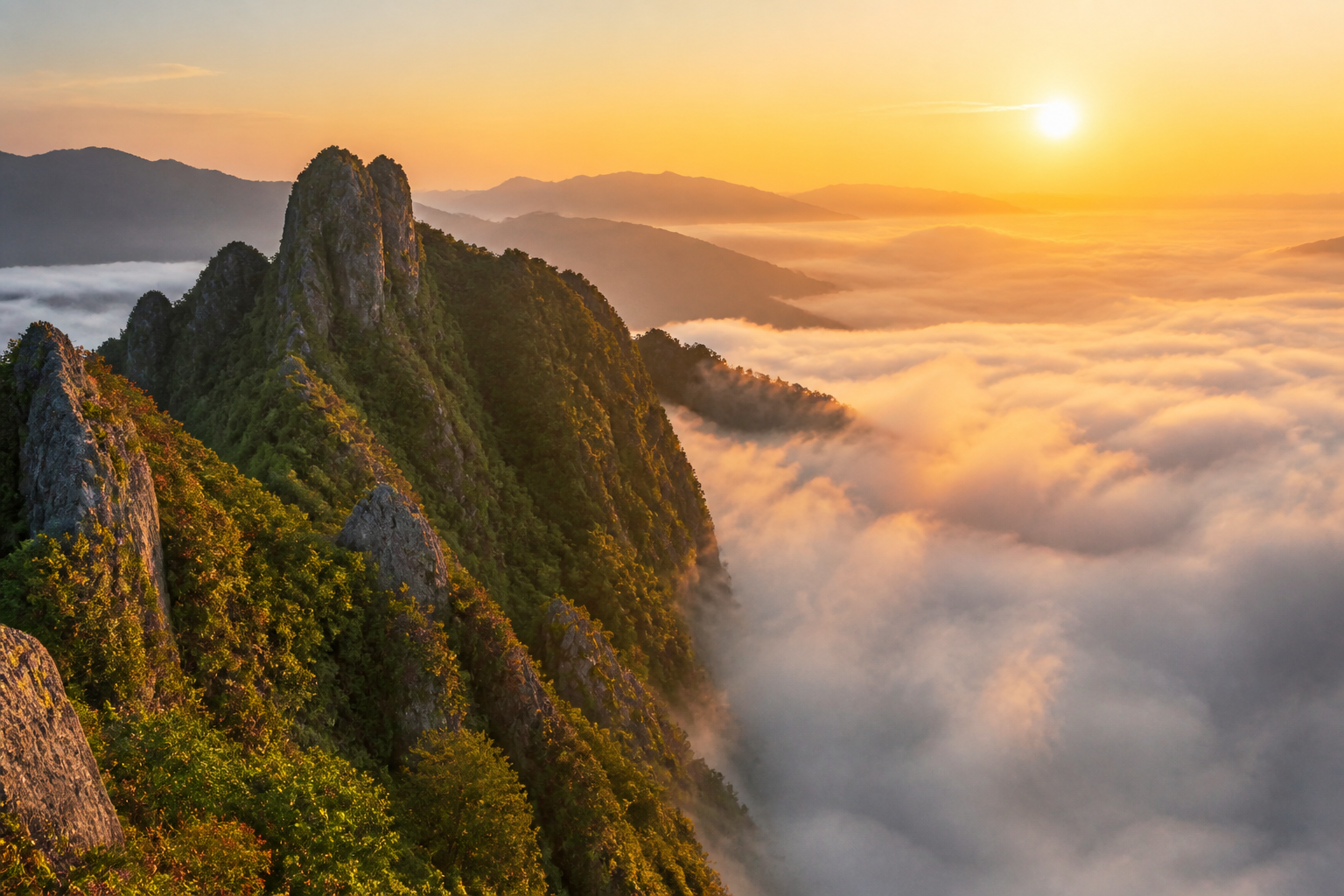
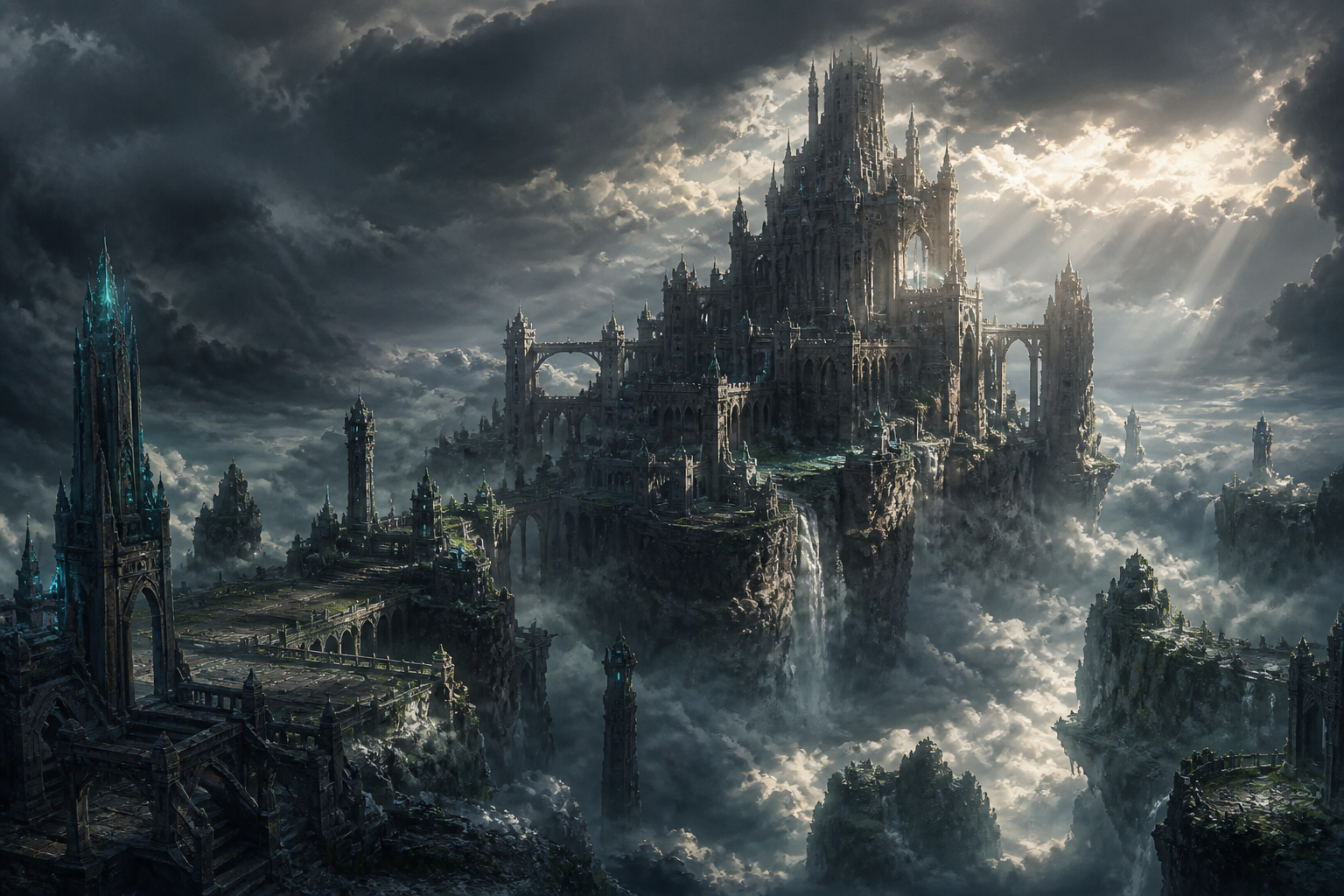
Fantasy scene
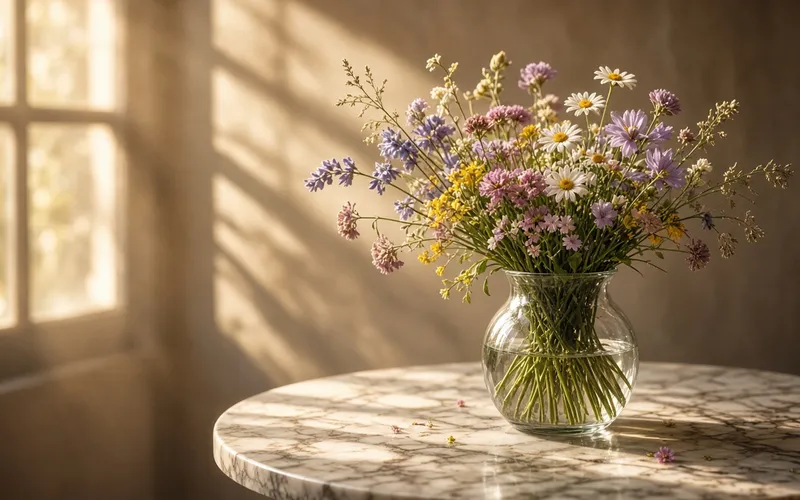
Botanical illustration

Midjourney AI Image GeneratorType a prompt. Get art-ready images.

Powered by Midjourney V8.1—text-to-image, image reference, Personalization, and style control, with native 2K HD, faster runs, and prompts that land closer to what you meant.

Features

Six Midjourney strengths that keep you creating

From a single prompt to native HD—get the image you actually imagined.

Midjourney V8.1 text-to-image example: cinematic portrait
01

Text-to-image that follows your words

V8.1 reads light, material, and composition with finer control. Photoreal portraits, concept scenes, product shots—plain language gets you usable images faster.

  • Stronger detail retention
  • More natural prompt language
  • Built for rapid concepting
Midjourney style reference and Moodboards example
02

Image reference that locks the look

Use image prompts, SREF, and Moodboards to carry a brand look or established style into new work—so series stay visually consistent.

  • More stable style reference
  • Moodboards for project-wide consistency
  • Ideal for brands and series
Midjourney V8.1 native 2K HD output example
03

Native 2K HD output

V8.1 ships native ~2048px HD—no legacy upscale detour. Explore in SD, then Run as HD when you’re ready to deliver.

  • Native 2K (~2048px)
  • More controllable HD cost
  • Ready for print and large screens
Midjourney V8.1 high-speed generation workflow
04

Faster generation, more takes

Midjourney reports standard V8.1 jobs at roughly 4–5× earlier versions. Try more compositions and settings—spend time picking winners, not waiting.

  • Much faster standard jobs
  • SD for rapid exploration
  • HD for final delivery
Midjourney Personalization model creation example
05

Personalization that learns your taste

With Personalization, results track your aesthetic more closely. Pair it with higher --stylize so your profile acts like a second prompt.

  • Profile-driven visual style
  • More consistent series work
  • Less repetitive parameter tweaking
Midjourney Raw mode realistic product shot example
06

Raw mode for realist control

Turn on --raw to dial down default aesthetic polish so the prompt leads. Product shots, architecture viz, and neutral storyboards benefit most.

  • Less default style bias
  • Higher prompt adherence
  • Strong for product and realism

Model & parameters

Spotlight: Midjourney V8.1

Released April 14, 2026, and the default model since June 10, 2026. Standard jobs run about 4–5× faster, with native ~2K HD output.

Default model

V8.1

--hd

Native 2K HD

Generate ~2048px high-resolution images. HD is more economical in V8.1 and toggleable in settings; use Run as HD to re-run a winning SD seed at full quality.

Explore in SD, finish in HD

--raw

Realism / faithful control

Strips some default aesthetic wrapping for stronger prompt adherence. Suited to product photography feel, neutral reference frames, and precise commercial visuals.

Turn on when you want less filter

--chaos

Variation range

Increases diversity and surprise. Higher values push composition and style further apart under the same prompt—great for brainstorming.

Typical range: 0–100

--stylize

Stylization strength

Controls how strongly the model’s aesthetics intervene. With Personalization, higher stylize often lets your taste profile lead the look.

Default ~100; explore up to 1000

--draft

Draft mode

V8.1 Draft produces many low-cost previews at once (for example 24), then Vary favorites to full quality—ideal for wide composition sweeps.

Screen layouts first, then polish

--v 8.1

Pin model version

Midjourney V8.1 launched April 14, 2026, and was the default from June 10, 2026. Explicitly pin the version when you need older workflow compatibility.

Switch the default in settings

Note: V8.1 doesn’t support the legacy --q quality flag. If your workflow needs --q 4, use V7. On V8.1, prefer an SD/HD resolution strategy plus --raw / --stylize for finish control.

Getting started

How to use Midjourney

Four steps from idea to finished image—built for first-time Midjourney creators.

  1. 1

    Open the studio

    Hit Try Midjourney to enter the image studio. Sign in or create an account, then start generating.

  2. 2

    Write your prompt

    Describe subject, style, lighting, and composition in plain language. Add reference images or style references to sharpen direction.

  3. 3

    Set parameters and resolution

    Use --raw, --stylize, and --chaos as needed. Explore in SD, then export 2K finals in HD when you’re happy.

  4. 4

    Iterate and export

    Vary / Remix favorites, refine the prompt, then export for design, marketing, or social.

Use cases

What you can make with Midjourney

Start with one prompt—turn ideas into images you can see and ship.

Midjourney use case: One prompt, one frame

01

One prompt, one frame

Capture composition, light, and mood in a prompt and see the result right away—inspiration leaves the sketchbook.

Midjourney use case: Portraits and character looks

02

Portraits and character looks

Generate realist portraits, character sheets, or mood studies—swap makeup, wardrobe, and lens language with ease.

Midjourney use case: Illustration and anime styles

03

Illustration and anime styles

Move freely from soft illustration to anime aesthetics and lock in a visual language that feels yours.

Midjourney use case: Fantasy scenes and atmosphere

04

Fantasy scenes and atmosphere

Build landscapes, worldbuilding frames, and cinematic stills for stories, wallpapers, or mood boards.

FAQ

Frequently asked questions

Capabilities, parameters, and getting-started paths for Midjourney V8.1.

What is Midjourney V8.1, and what improved?+
Midjourney V8.1 is a major Midjourney image model release from April 2026 and the default since June 10, 2026. Versus earlier versions, it delivers roughly 4–5× faster generation, sharper prompt detail reading, and native ~2K HD output.
Does Midjourney V8.1 support the --q 4 quality flag?+
No. Quality (--q) isn’t available in V8.1 / V8.2. If your workflow depends on --q 2 or --q 4, temporarily switch back to V7. On V8.1, explore in SD, finish in HD, and steer look with --raw and --stylize.
How do I generate native 2K HD images in Midjourney?+
Enable HD in V8.1 settings, or append --hd to your prompt. You can also explore quickly in SD, then Run as HD on a favorite to re-run the same seed at ~2048px.
What’s the difference between text-to-image and image reference?+
Text-to-image relies mainly on written prompts. Image reference adds image prompts, SREF, or Moodboards to transfer composition, materials, or brand look. Combining both usually yields more controllable Midjourney results.
How should beginners get started with Midjourney?+
Start with short, concrete prompts: subject + style + lighting + composition. Generate with defaults first, then try --raw, --stylize, and style references. Follow our Getting started with Midjourney tutorial for a step-by-step path.
Where can I try Midjourney image generation right away?+
Click Try Midjourney on this site to jump into the studio and start generating. Midjourney.ing covers model overview, parameter guides, and tutorials so you can master V8.1 faster.
Best practices

Tips for better Midjourney V8.1 results

Tip 01

SD first, HD last

Screen compositions and prompts in standard resolution, then Run as HD—save time and GPU cost.

Tip 02

Lean on --raw for realism

For product, architecture, and neutral boards, enable Raw to cut default cinematic polish so prompts stay in charge.

Tip 03

Personalization + higher stylize

After training Personalization, try higher --stylize so your aesthetic profile leads the mood.

Tip 04

Lock series look with style reference

Use SREF / Moodboards to anchor brand color and brushwork—and stop style drift inside one project.

Tip 05

Draft for wide sweeps

When you need many directions, preview in Draft, then promote winners to full quality.

Tip 06

Lead with subject and light

Name the subject, lens, and lighting before stacking style adjectives—clarity beats filler.

Blog

Latest from the blog

View all →

Tutorials

Latest tutorials

View all →

Ready when you are

Start creating with Midjourney

Open the studio and explore text-to-image and style with V8.1. Prompts, parameters, and tutorials live on midjourney.ing.