Edit Specific Areas
Select a region and change only that part of the image instead of regenerating everything.
Midjourney Editor lets you modify existing images instead of starting from scratch. Refine a generated result, work with personal or external images, and continue editing without rebuilding the whole prompt.
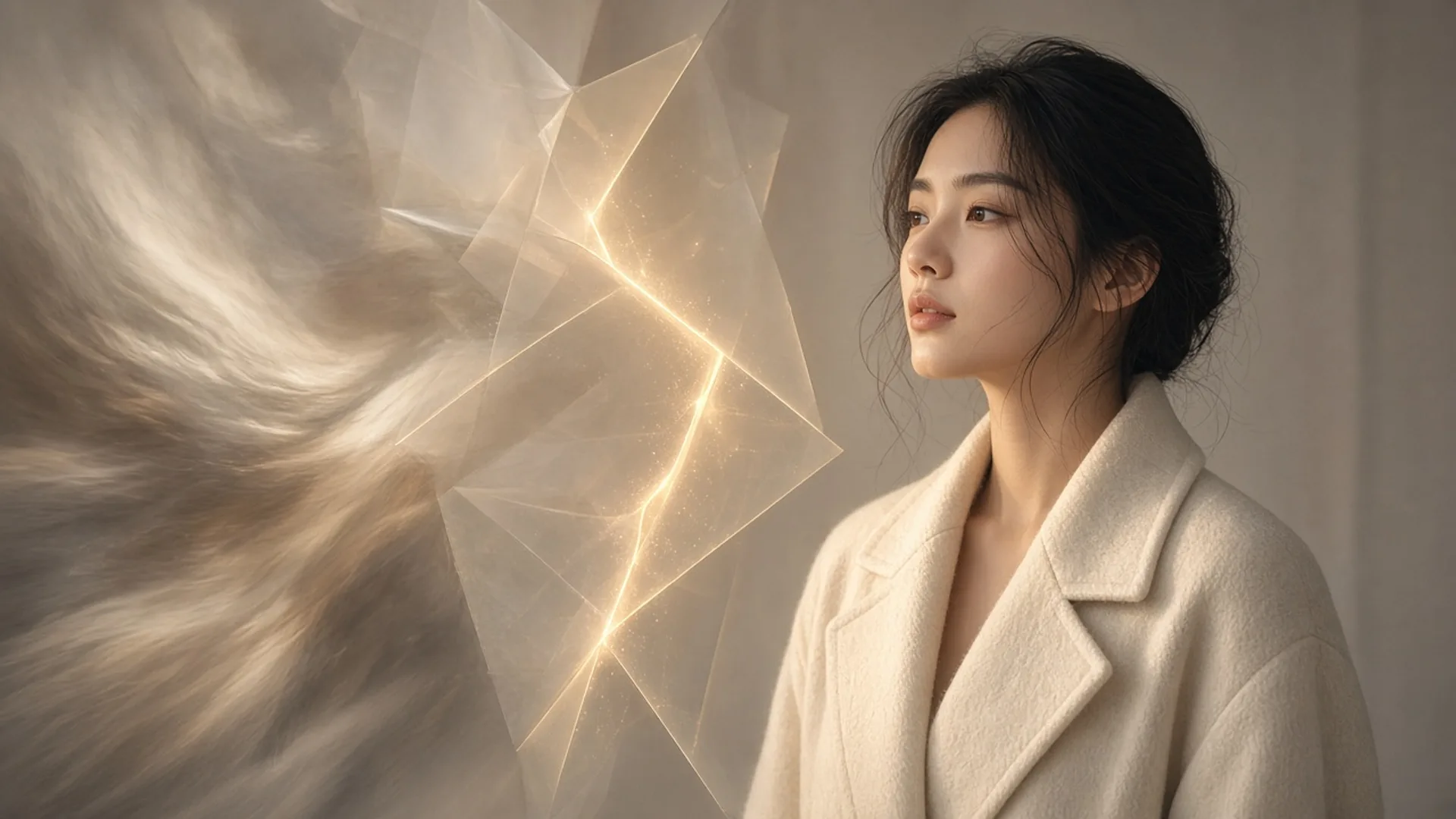
The Midjourney Editor is the web interface for editing existing images. It can work with Midjourney generations and with personal or external images. In V8.X, inpainting and outpainting use the Edit Model. Editor is the interface; Edit Model is the V8.X capability that powers image modification.
The Editor is the Midjourney web interface for editing images. V8.2 is currently the default Midjourney version. In V8.X, the Editor uses the Edit Model to modify an existing image with written instructions, generate new images from up to four reference images, and support inpainting and outpainting. The Editor is not limited to Midjourney-generated images.
Current Editor tools include Move / Resize, Paint / Erase, Smart Select, custom aspect ratios, Layers, Export, and related workflows. Pan and Zoom Out remain available as Editor workflows, but they are not separate products in this guide.
Select a region and change only that part of the image instead of regenerating everything.
Expand the canvas and add content beyond the original frame.
Adjust canvas size and framing before generating additional content.
In V8.X, retexturing is built into the Edit Model rather than offered as a separate legacy tool.
The workflow is conceptual. Exact labels can vary by interface version.
Open a Midjourney result or a personal/external image in the Editor.
Adjust the canvas or select the region you want to change.
Paint, erase, use Smart Select, or add another image as a Layer.
Write an instruction-style prompt for the Edit Model.
Send the edit so the Edit Model can modify the composition.
Compare the new version with the existing image.
Keep editing, upscale later if needed, or export the result.
Inpainting modifies a selected area of an existing image. You can remove unwanted objects, regenerate characters, objects, or backgrounds, and use Paint / Erase or Smart Select to control the region. In V8.X, this workflow uses the Edit Model.
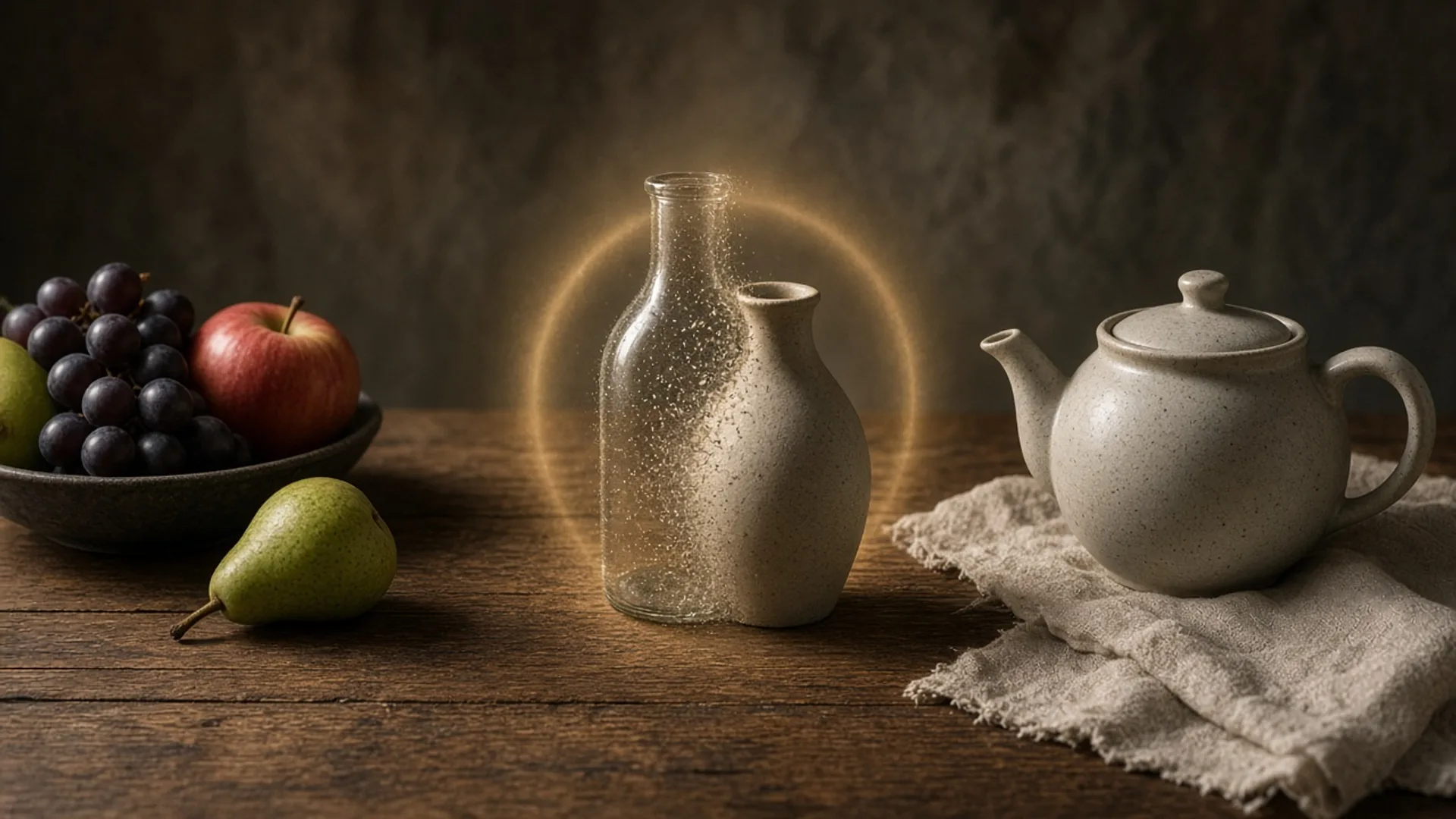
Outpainting expands the canvas and adds content beyond the original frame. It is useful when you need more composition space, a different aspect ratio, or extra environment around the current subject. Outpainting is part of the Editor workflow, not a standalone route.
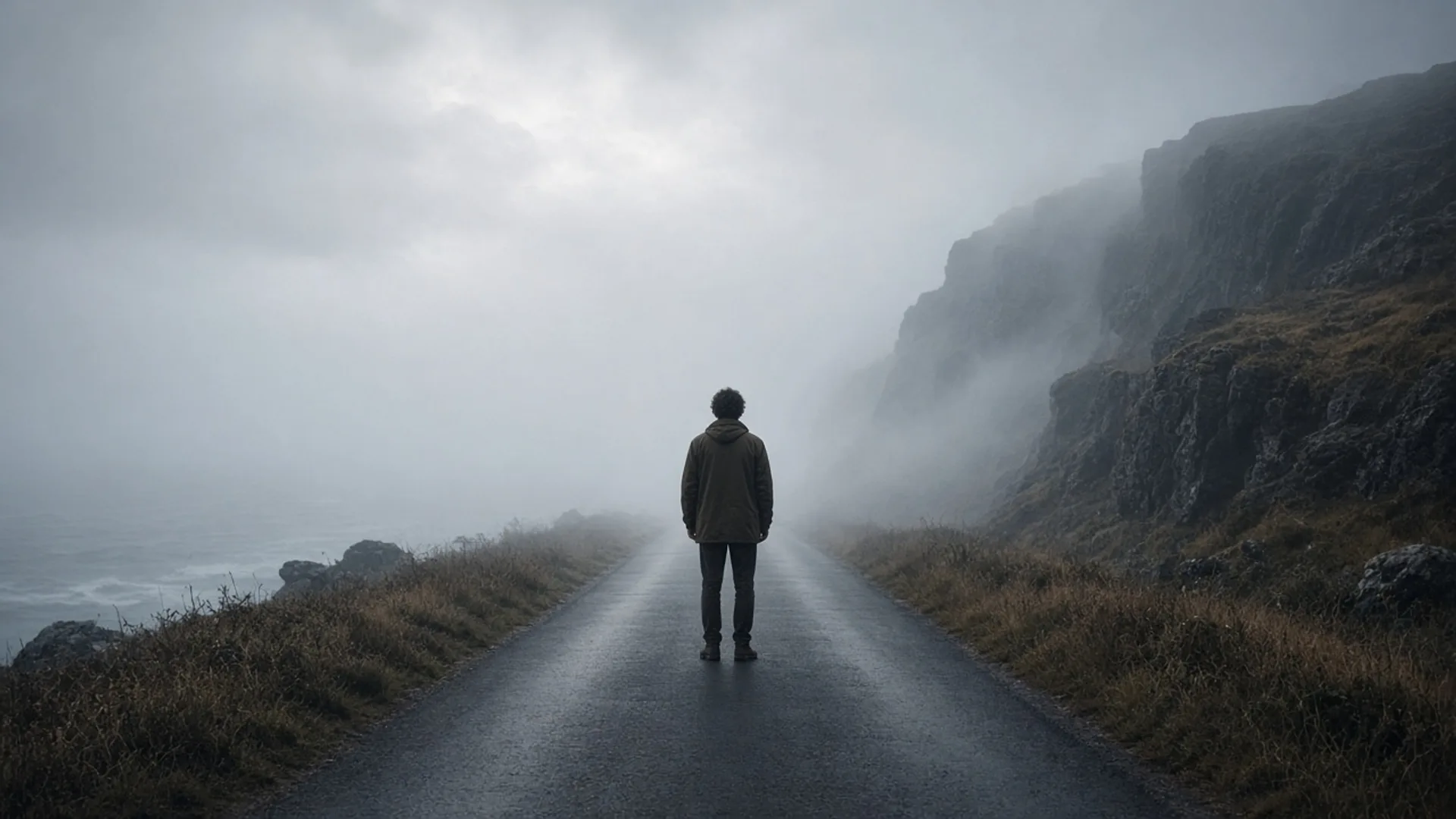
Layers let you add additional images to a composition. You can reorder, move, scale, and partially erase them, then submit the edit so the Edit Model can flatten the composition. Layers are an Editor tool, not a separate generation mode.
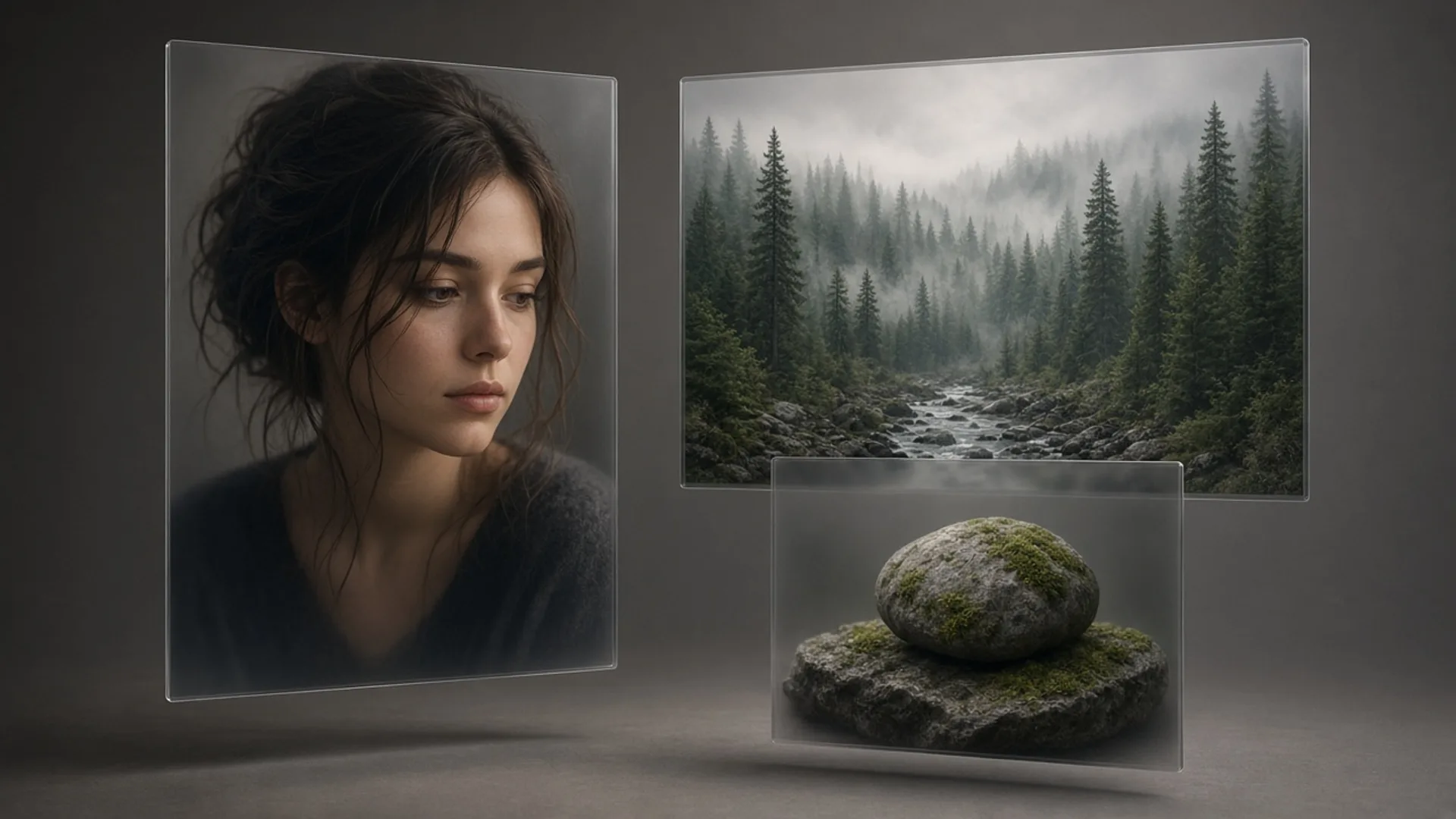
For V8.X, Retexture is built into the Edit Model. It is not a separate modern V8.2 standalone tool, and older V7 Retexture behavior should not be treated as the current workflow. Style can still be guided with prompt wording, Style References, Moodboards, or Personalization when those tools are appropriate.
Keep the interface and the model capability distinct.
The web editing interface. It is where you select areas, add Layers, change the canvas, and submit edits.
The V8.X model capability used for modifying or creating images with instructions and references. It works with V8.1 and V8.2.
Edit Model GuideEditor is the web editing interface, while the Edit Model powers image modification and generation workflows in V8.X. They are not the same feature, and they are not competing products.
Image References guide generation. The Editor modifies an existing image.
Use an image as generation guidance rather than as an Editor composition layer.
Image PromptsGuide look and feel with style references, which is different from editing pixels in the Editor.
Style ReferenceDirectly modify an existing image in the web editing interface.
These examples are illustrative edit directions, not guaranteed results.
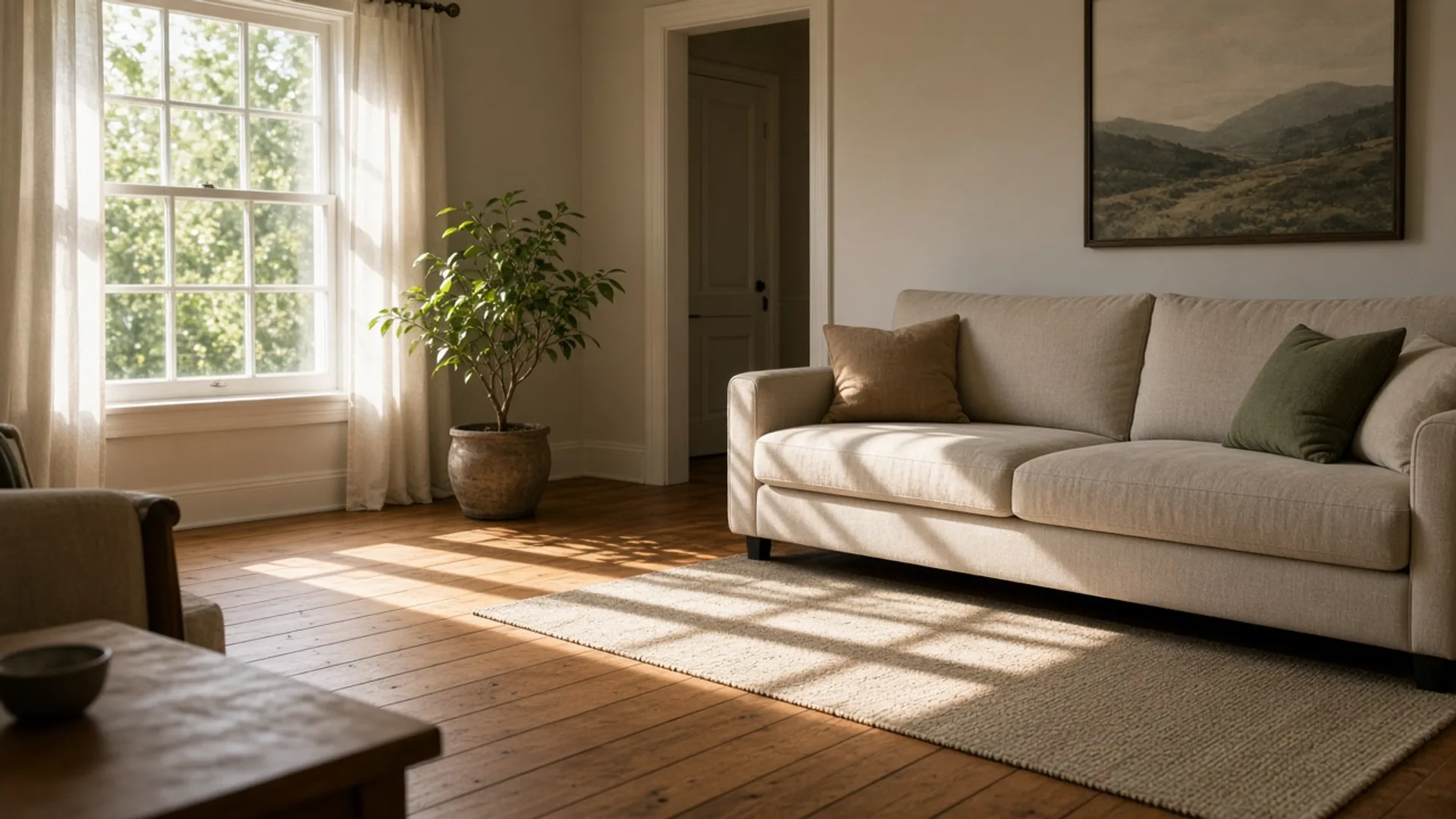
Keep the rest of the scene and remove one distracting object.
remove the extra cup from the table and keep the lighting unchanged
Edit direction: Select and erase the object, then describe the replacement or empty space.
Why Editor: Use inpainting when only a local area should change.
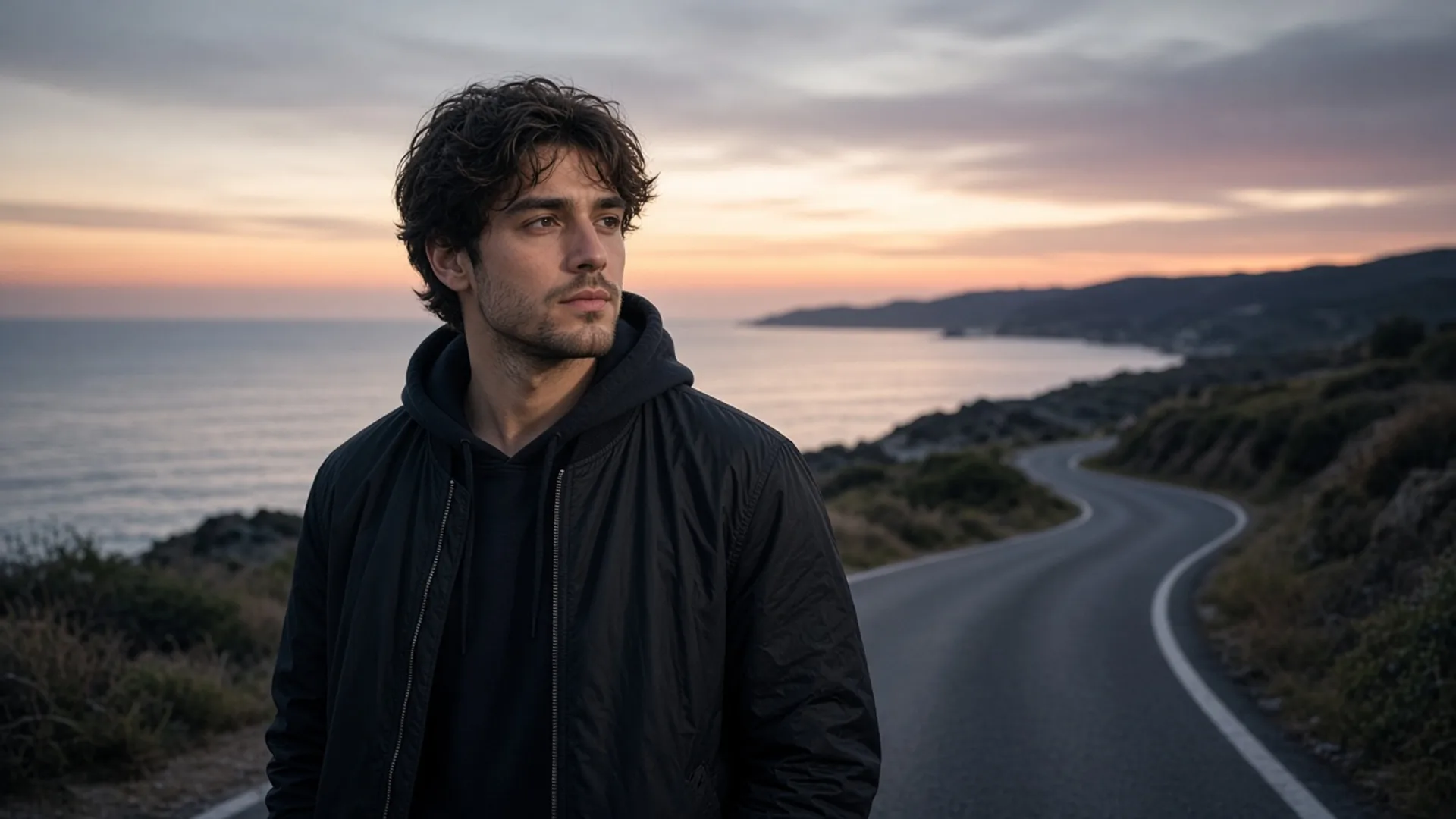
Keep the subject and replace the surrounding environment.
replace the background with a misty forest while keeping the same clothing and pose
Edit direction: Select the background, then instruct the Edit Model to regenerate that area.
Why Editor: Useful when the subject is already right and the setting is not.
Expand the canvas so the portrait has more breathing room.
extend the canvas with matching studio light and keep the same subject
Edit direction: Increase available composition space, then generate content outside the original frame.
Why Editor: Outpainting is better than starting a new generation when the portrait is already approved.
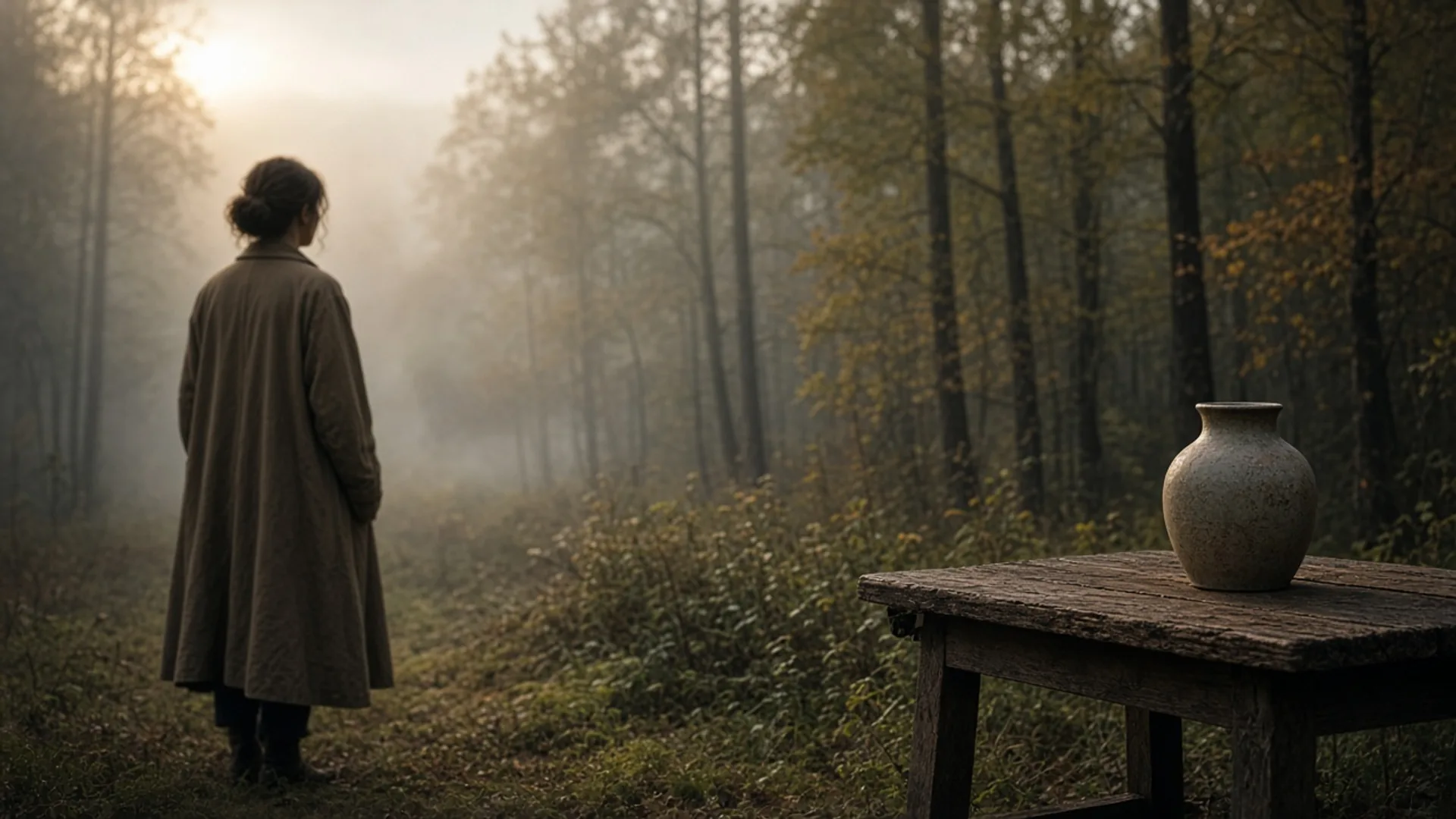
Place a second image into the composition as a Layer.
blend the added landscape behind the subject and keep a natural edge
Edit direction: Add a Layer, position it, then submit the edit so the Edit Model can combine the elements.
Why Editor: Layers are for Editor composition, not the same as Image Prompts.
Keep the composition while shifting the look through Edit Model instructions and optional style guidance.
keep the same composition and apply a softer editorial texture
Edit direction: In V8.X, retexturing is built into the Edit Model rather than used as a separate legacy tool.
Why Editor: Prompt wording, Style References, Moodboards, or Personalization can still guide style when appropriate.
A larger selection can change more of the image than you intended. Keep the region as specific as the edit requires.
Edit Model instructions work best when they describe the change, not a brand-new unrelated scene.
If you need more space, change the canvas first. Adding content without extra room can crowd the original frame.
Image Prompts guide generation. The Editor modifies an existing image.
Image Prompts GuideUpscale increases pixel size. Editor changes content, composition, or canvas.
Upscaler GuideIn V8.X, Edit Model replaces the role of Omni Reference and Character Reference, and Retexture is built into the Edit Model. Do not follow older V7 workflows as if they were current V8.2.
Try Midjourney and use the Editor to refine an existing image instead of starting over.