Midjourney AI

Midjourney Inpainting & Outpainting Guide

Midjourney Editor can modify selected regions or expand the canvas rather than regenerating the whole image from scratch. In V8.X, inpainting and outpainting use the Edit Model.

Scene suggesting one selected region changing while the rest of the image stays consistent

Quick Answer

Inpainting modifies an existing area. Outpainting expands the canvas beyond the original frame. Both happen in the Editor and, in V8.X, are powered by the Edit Model rather than by regenerating the entire image.

  • Inpainting: change a selected region of an existing image.
  • Outpainting: add space and content outside the original frame.
  • Paint / Erase and Smart Select help control the selection.
  • The selection must be applied before you submit the edit.

What Is Inpainting?

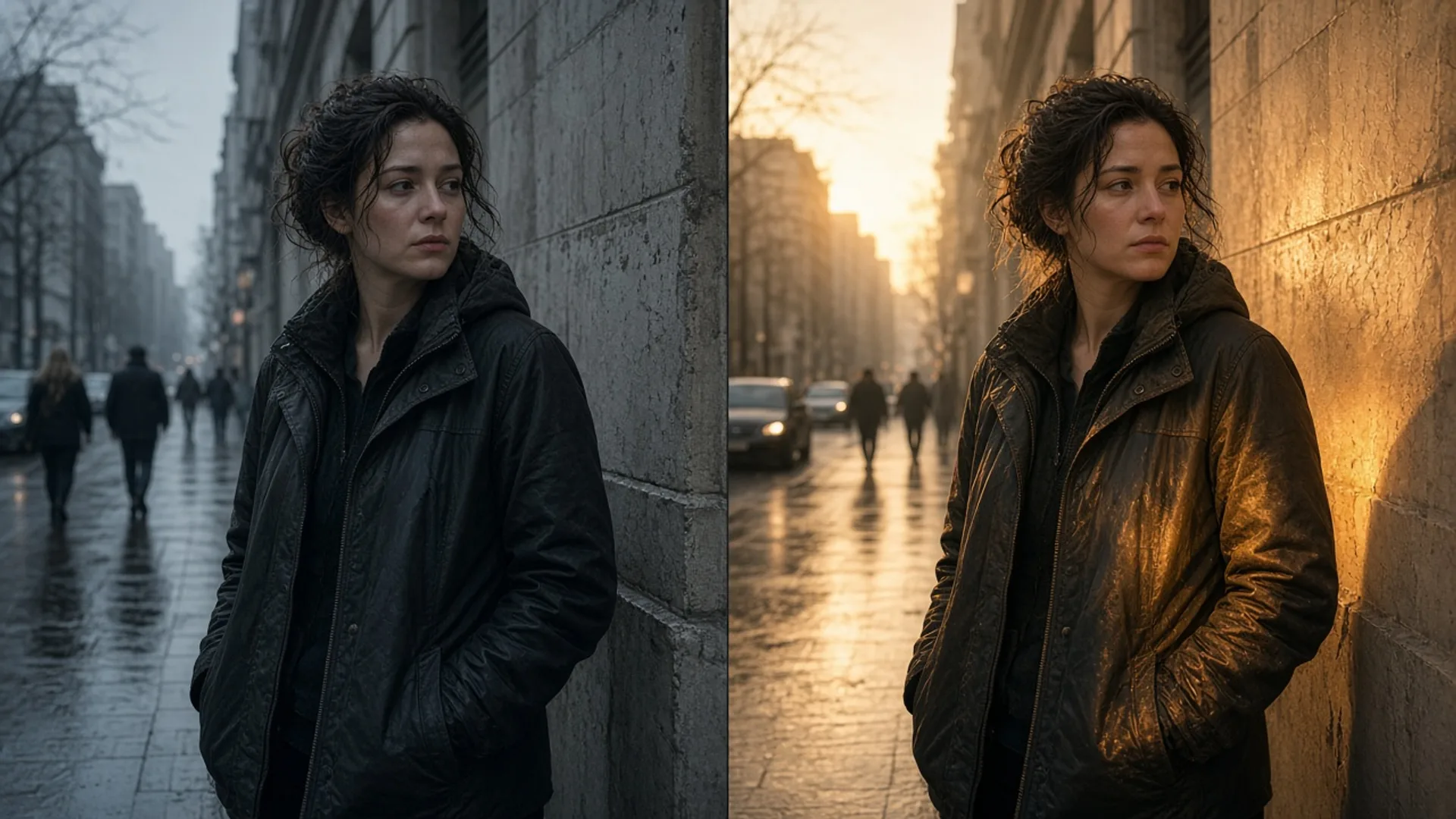
Inpainting is local editing. You select an area, erase or mask it, describe the desired change, submit the edit, and review the result. The rest of the image is intended to stay the starting point, though results are not guaranteed identical.

Conceptual local edit where one region changes inside a consistent scene

What Is Outpainting?

Outpainting expands the canvas and generates content beyond the original frame. It can increase composition space and help you change aspect ratio without starting a completely new image. There is no separate Outpainting route in this cluster.

How Inpainting Works

  1. 1

    Select an area

    Choose the region that needs to change.

  2. 2

    Erase or mask it

    Use Paint / Erase or Smart Select to mark the area.

  3. 3

    Describe the change

    Write an instruction for what should appear or disappear.

  4. 4

    Submit the edit

    Let the Edit Model modify that region.

  5. 5

    Review results

    Check whether the local change fits the rest of the image.

Erase & Smart Select

Smart Select is an Editor tool, not a standalone page. It helps build a selection before you submit the edit.

  • Include points add areas to the selection
  • Exclude points remove areas from the selection
  • Erase Selection clears the current selection
  • Erase Background can target the surrounding area instead of the subject
  • The selection must be applied before submitting the edit

On Discord, a similar local-editing idea is associated with Vary Region. The website Editor uses Paint / Erase / Smart Select. Vary Region is not the website Editor’s only local editing workflow, and it is not a standalone route here.

How Outpainting Works

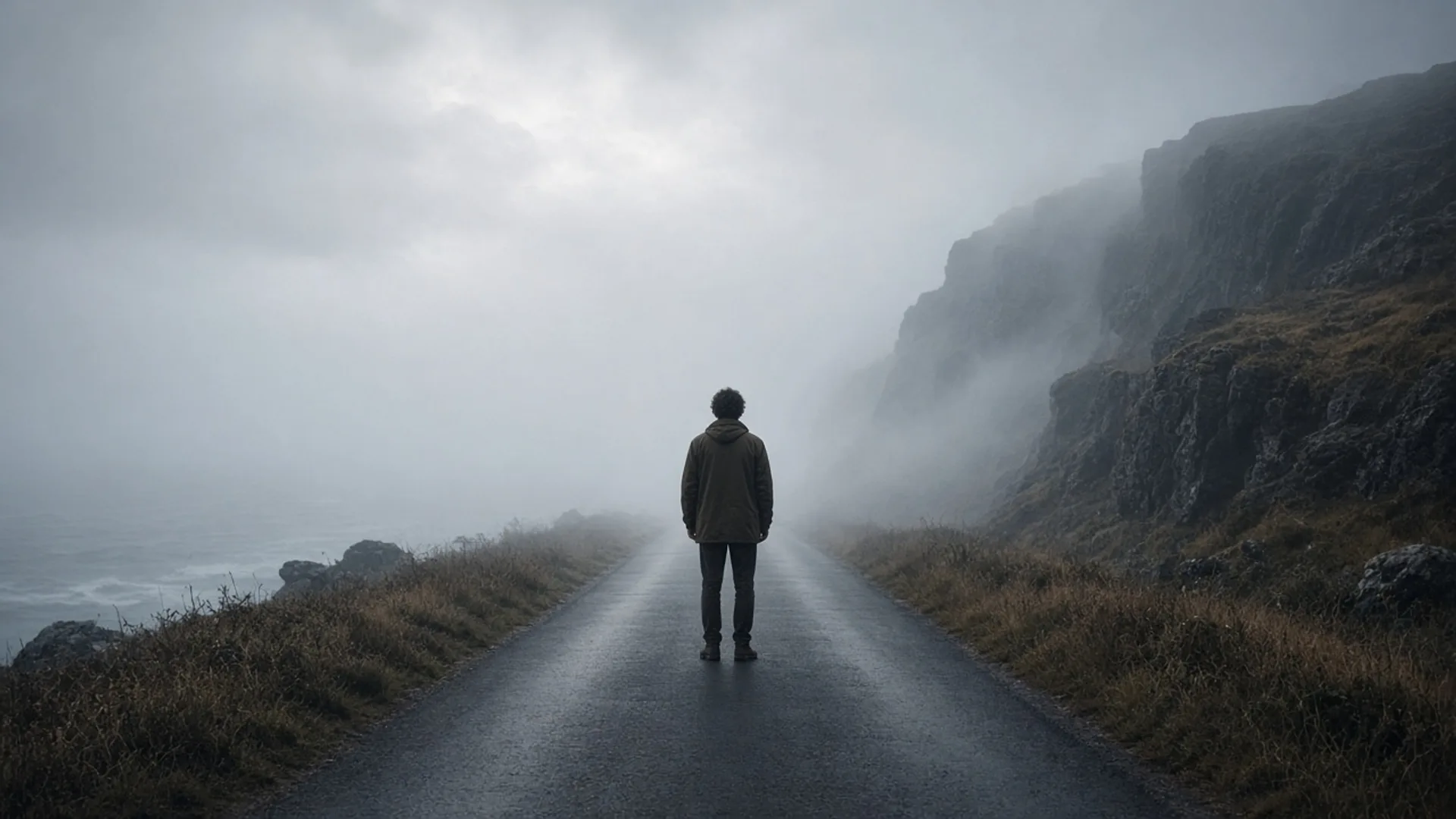
Increase canvas space, adjust the frame if needed, then generate content outside the original image. Outpainting is useful when the current subject is already right and you need more environment, padding, or a different ratio.

Expanded scene suggesting content generated beyond the original frame

Change the Canvas

Resize the canvas and change aspect ratio before asking for extra content. If the canvas stays the original size, there is little room for outpainting. Canvas changes are part of the Editor workflow, not a separate resolution product.

Prompting for Local Edits

Edit Model supports instruction-style prompts. Describe the change you want in the selected area, such as removing an object, replacing a background, or adding a detail. Do not write a full-scene prompt as if every edit were a brand-new generation.

  • Say what to change in the selected area
  • Say what should stay the same when it matters
  • Keep the instruction focused on the edit
  • Avoid describing an unrelated new scene

Practical Examples

These prompts are local-edit instructions, not full-scene generations.

Natural replacement after an unwanted object was removed

Remove an unwanted object

Erase the object and ask for a natural continuation of the surface behind it.

          remove the extra bag and restore the matching floor texture
        

Edit direction: Inpainting replaces only the selected object.

Tip: Keep the selection close to the object.
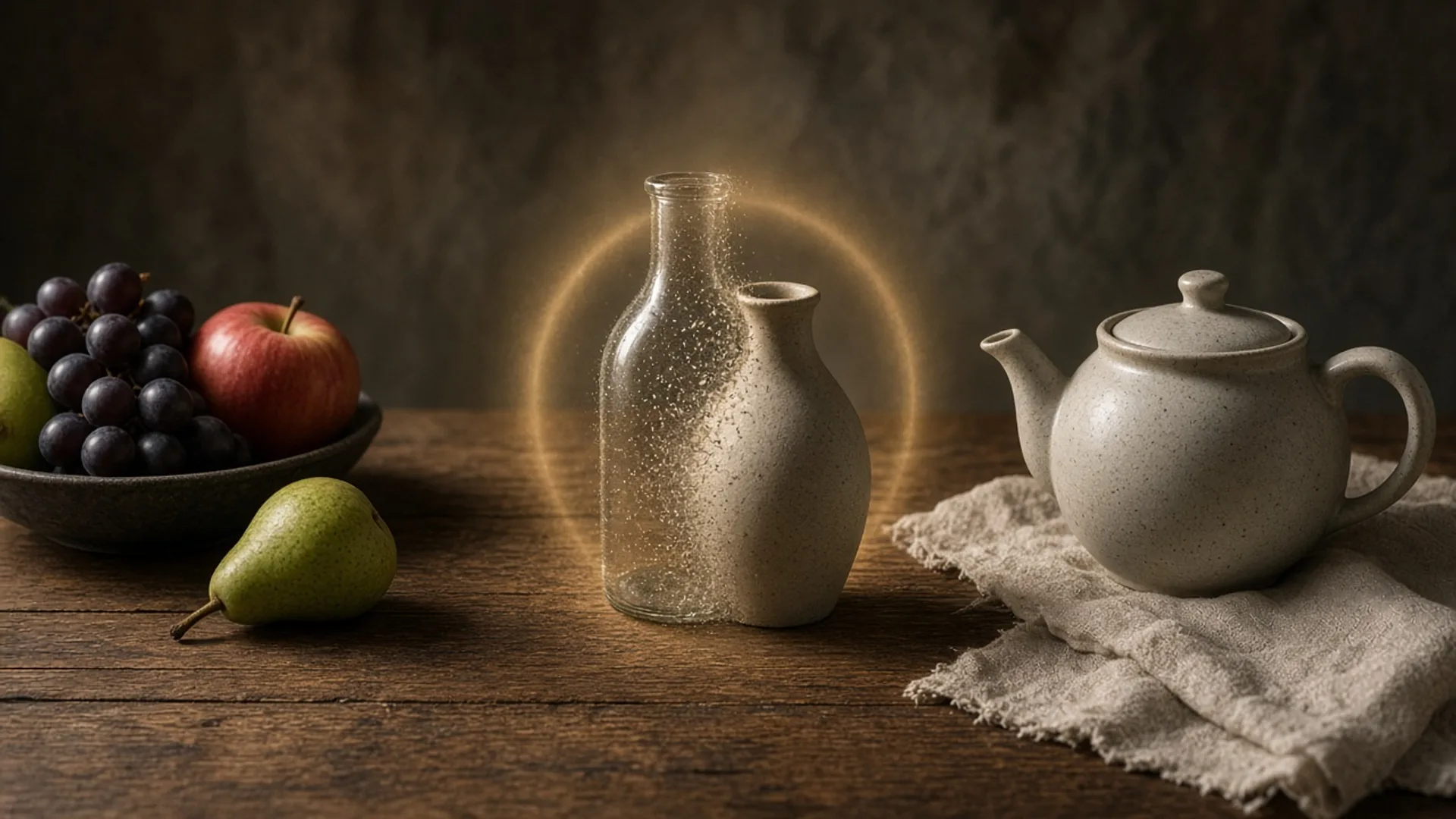
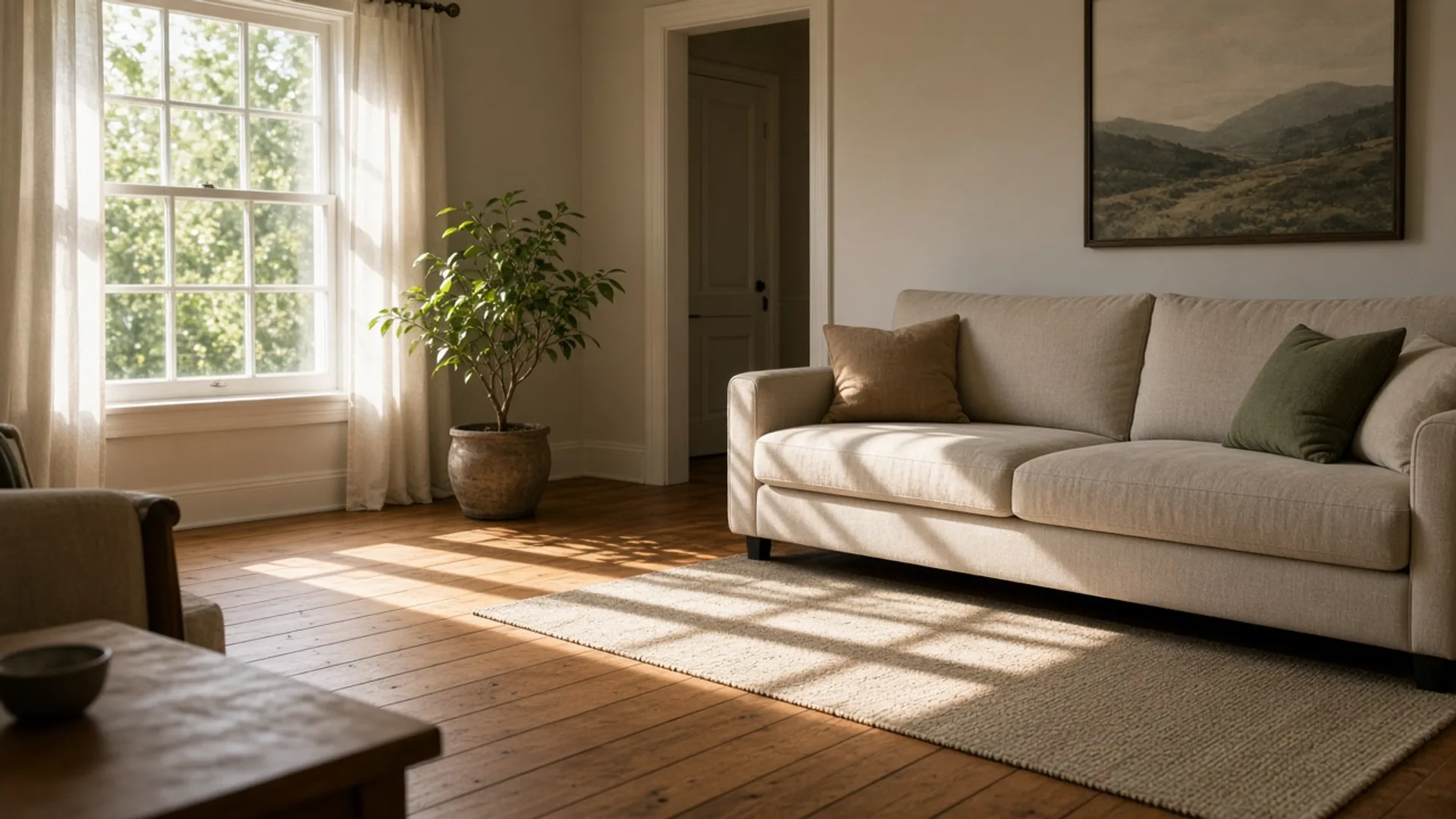
Selected object replaced while the surrounding still life stays consistent

Replace an object

Swap one object for another while keeping the surrounding light.

          replace the glass bottle with a small ceramic vase and keep the same table light
        

Edit direction: The selected region is regenerated with a new object.

Tip: Name both the old object and the new one.

Subject held while the surrounding background is transformed

Change the background

Keep the subject and regenerate the environment.

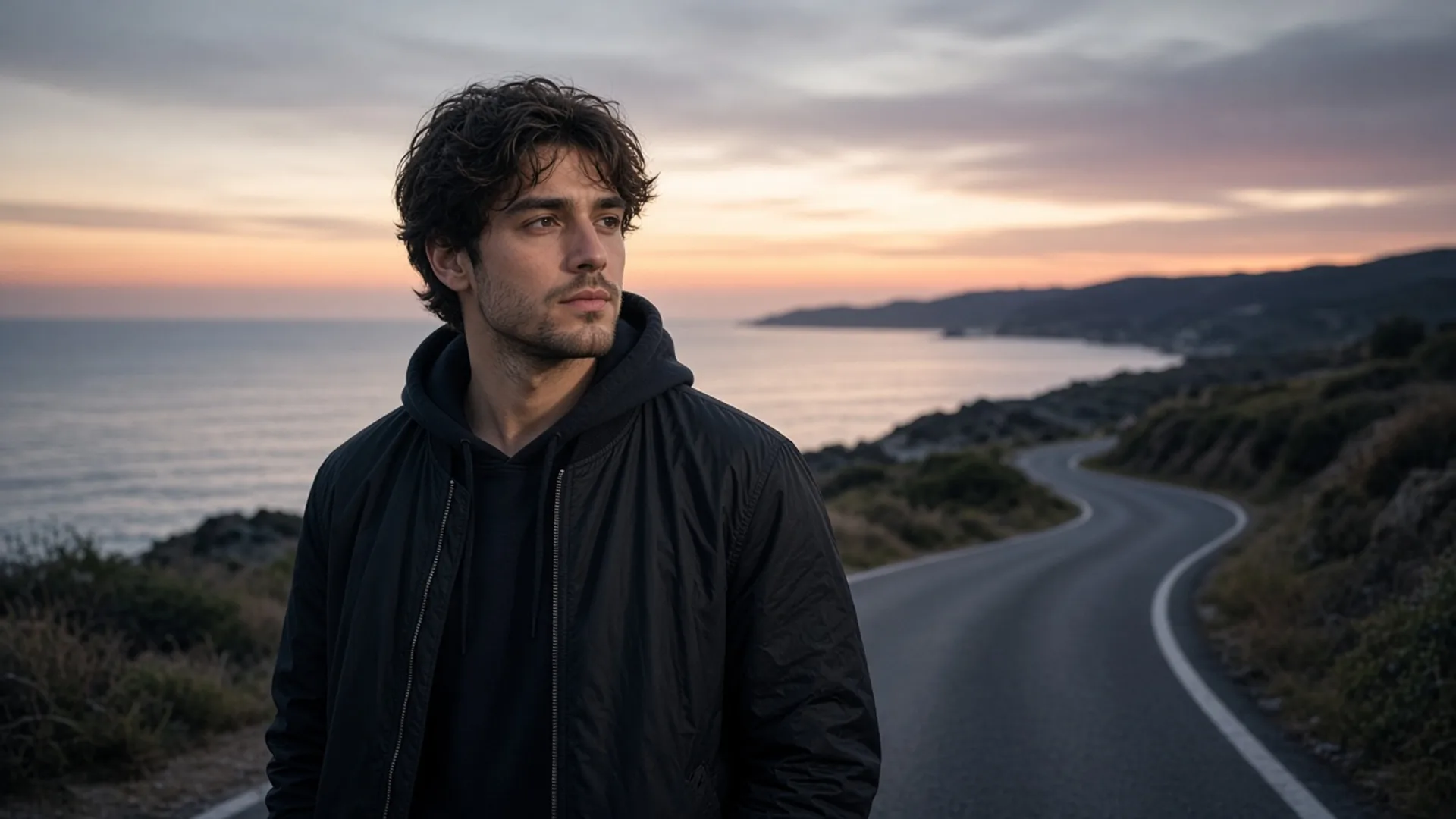
          change the background to a quiet coastal road and keep the same clothing
        

Edit direction: Background inpainting leaves the subject as the starting point.

Tip: Select background, not the whole frame, when possible.

Local region refined with additional detail

Add detail

Ask for extra texture or a small element in a selected region.

          add soft rain droplets on the jacket without changing the pose
        

Edit direction: A local instruction can add detail instead of replacing the whole subject.

Tip: Smaller selections usually keep more of the original look.

Image extended beyond the original frame

Extend the image

Expand the canvas and continue the environment.

          extend the scene to the left with matching fog and keep the same subject scale
        

Edit direction: Outpainting adds space beyond the original frame.

Tip: Change the canvas first if you need more room.

Selection Size & Editing Tips

  • Keep the selection as small as the change requires
  • Apply Smart Select before submitting the edit
  • Resize the canvas before outpainting
  • Use instruction-style prompts for the selected area
  • Review whether the local change still matches the rest of the image

Inpainting vs Image Prompts

Inpainting

Modifies an existing image in a selected region.

Inpainting vs Remix

Inpainting

Targeted image-region modification inside the Editor.

Remix

Prompt or parameter iteration during variations or other applicable actions.

Remix Guide

Common Mistakes

  1. 1

    Selecting the whole image for a local change

    If only one object should change, a full-frame selection behaves more like a new generation.

  2. 2

    Submitting before the selection is applied

    Smart Select and erase marks need to be applied before the Edit Model can use them.

  3. 3

    Writing a full scene prompt for a local edit

    Describe the change in the selected area. A complete new-scene prompt can fight the existing image.

  4. 4

    Trying to outpaint without extra canvas

    Expand or reframe the canvas first when you need more space.

Frequently Asked Questions

What is inpainting in Midjourney?+
Inpainting modifies a selected area of an existing image. In V8.X, the Editor uses the Edit Model to regenerate or replace that region instead of rebuilding the whole image from scratch.
What is outpainting in Midjourney?+
Outpainting expands the canvas beyond the original frame and generates additional content in the new space. It is part of the Editor workflow, not a standalone page.
How do I replace part of an image in Midjourney?+
Open the image in the Editor, select the area with Paint / Erase or Smart Select, describe the replacement, apply the selection, then submit the edit.
Can Midjourney remove objects from an image?+
Yes. Select the object, erase or mask it, and instruct the Edit Model to remove it or restore the surrounding surface. Results vary and are not guaranteed identical.
What is the difference between inpainting and outpainting?+
Inpainting changes an existing area inside the current frame. Outpainting adds space and content outside the original frame.

Ready to Create Your Own Images?

Try Midjourney and use the Editor to change a selected area or expand the canvas instead of starting over.