Midjourney Layers Guide
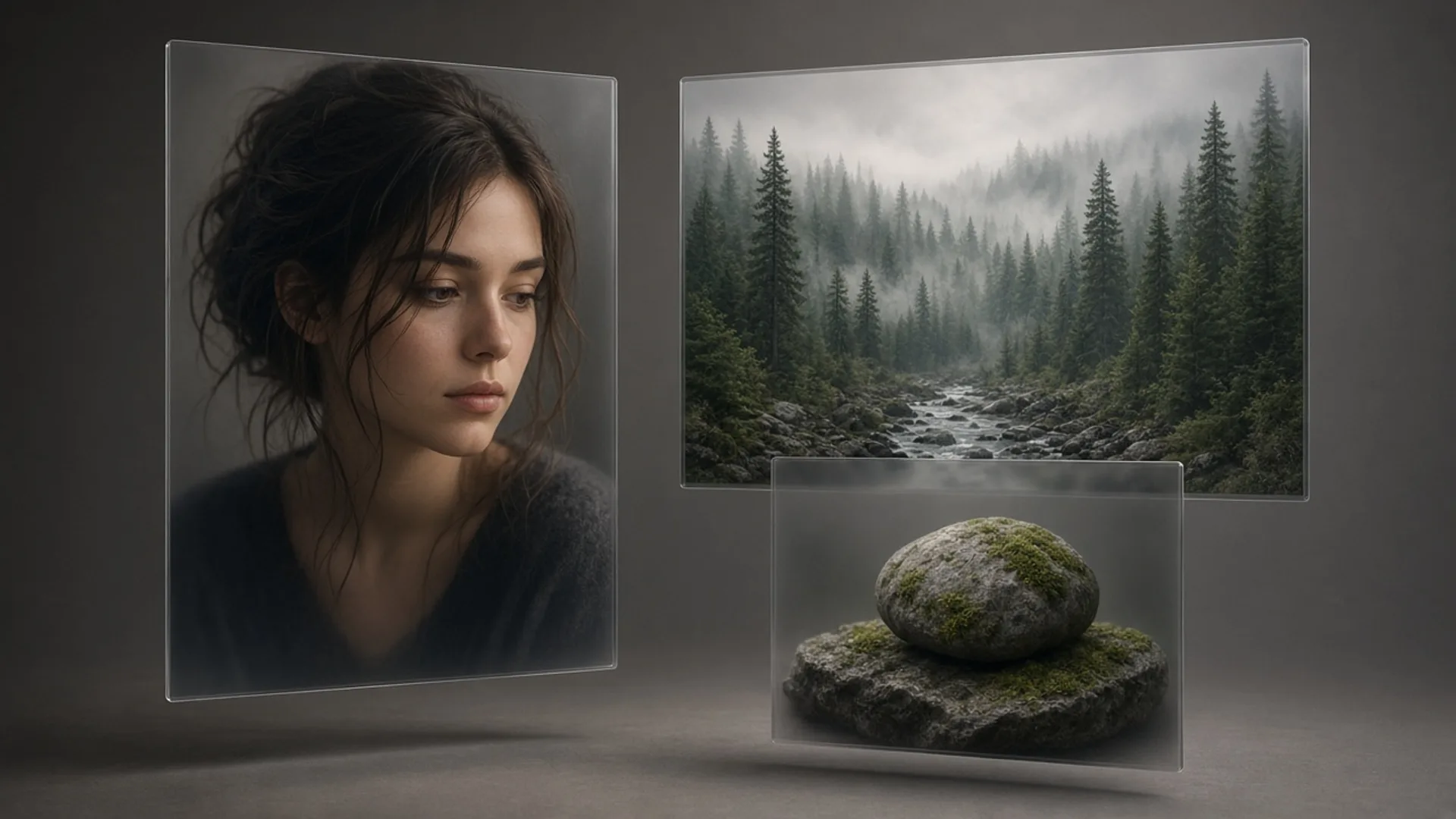
Layers allow you to combine additional images inside the Editor and create more complex compositions. They are part of the Editor workflow, while the Edit Model performs the image generation and modification.
Quick Answer
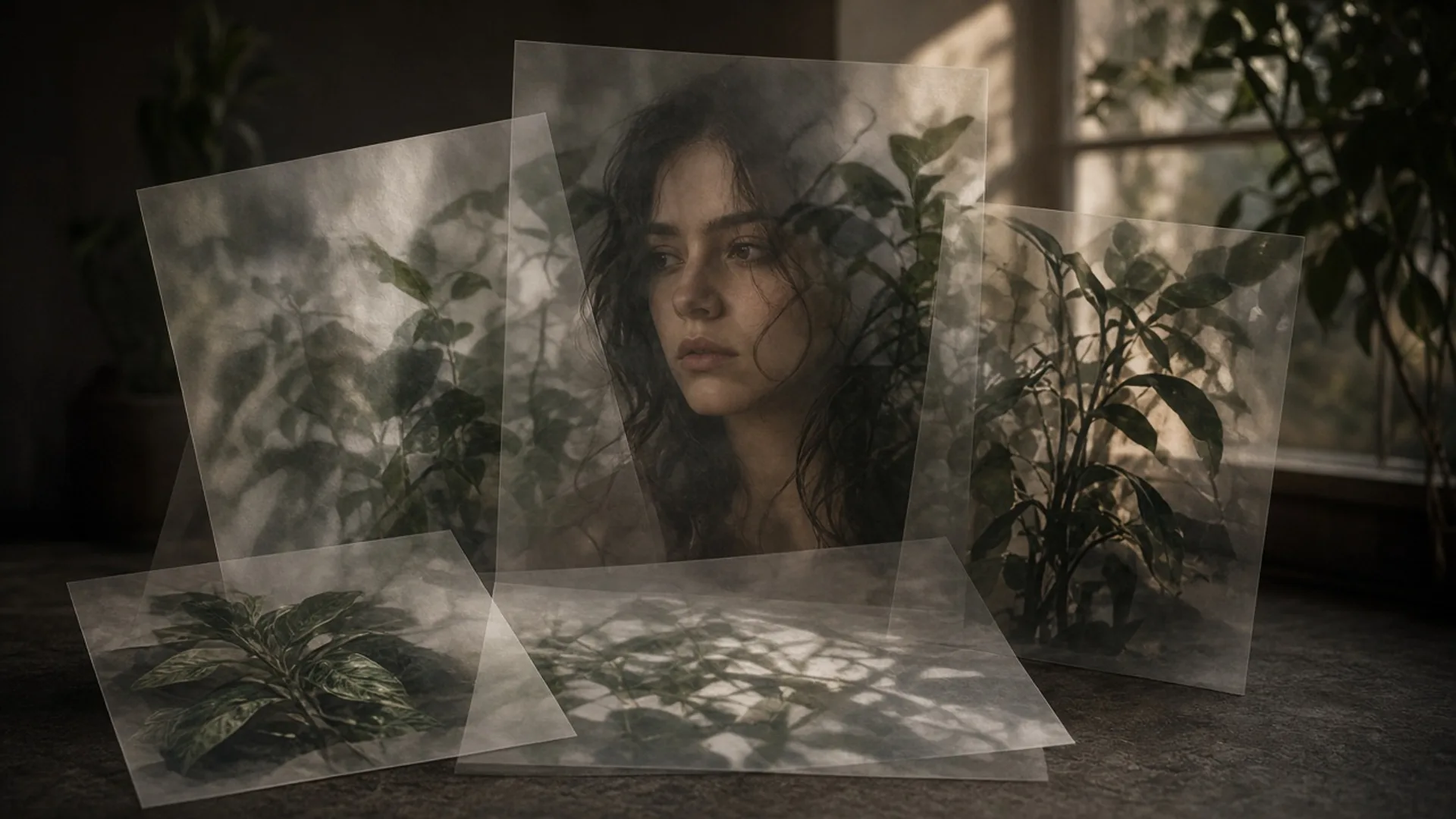
A Layer is an additional image placed into an Editor composition so you can move, scale, reorder, and partially erase it. Layers are useful when you want to combine images before submitting an edit. They are not the same as Image Prompts, which influence generation rather than placing an image on the canvas.
- Open Layers, add another image, then position and scale it.
- Reorder or delete layers as the composition develops.
- Erase tools can affect the active layer.
- Submitting the edit flattens the composition through the Edit Model.
What Are Layers?
Layers let you add extra images into the current Editor composition. Each layer can be treated as a visual element you can move, scale, reorder, and partially erase. Layers help you prepare a more complex scene, but they do not promise pixel-perfect compositing.
How to Add a Layer
- 1
Open Layers
Open the Layers tools in the Editor.
- 2
Add
Choose Add and select another image.
- 3
Position it
Place the new layer where the composition needs it.
- 4
Scale it
Resize the layer so it fits the scene.
- 5
Edit it
Erase, reorder, or continue describing the change before submitting.
Move & Resize Layers
After a layer is added, you can move it, scale it, and adjust how it sits in the composition. These controls help you place a subject, object, or extra element without treating the whole canvas as a single locked image.
Reorder Layers
Layers can be reordered so one element sits above or below another. You can also delete a layer you no longer need. Reordering is a composition step, not a generation parameter.
Erase Parts of a Layer
Editor tools can affect the active layer. Use erase or paint on the layer you currently have selected so you can hide edges, remove extra background, or reveal what sits underneath. Confirm the active layer before you erase.
Combine Multiple Images
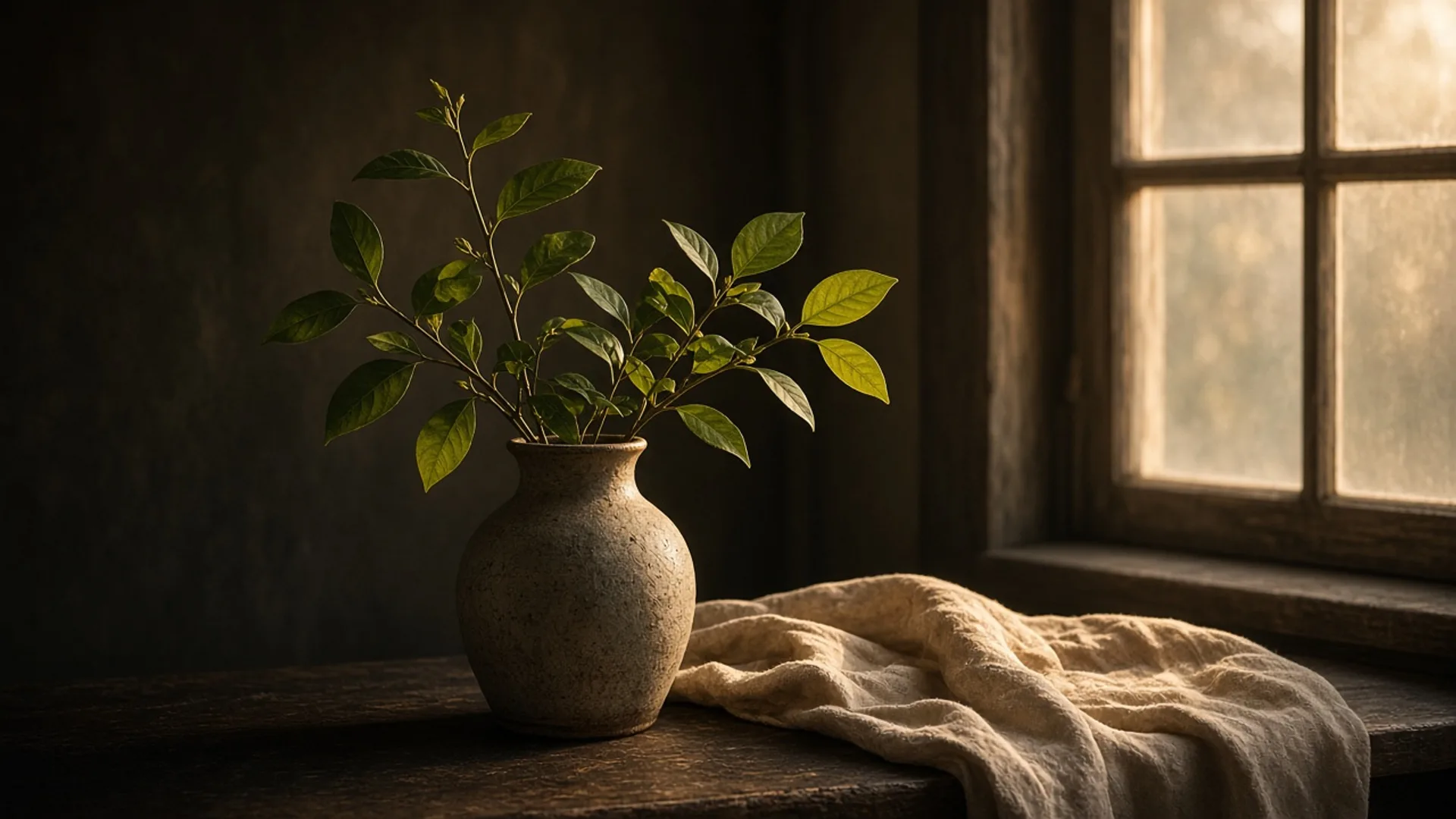
Layers can bring a subject, a background, and extra objects into one composition. This is useful when you want a more complex scene than a single generated image provides. Do not expect pixel-perfect compositing; the Edit Model still interprets the combined result when you submit the edit.
Layers + Edit Model
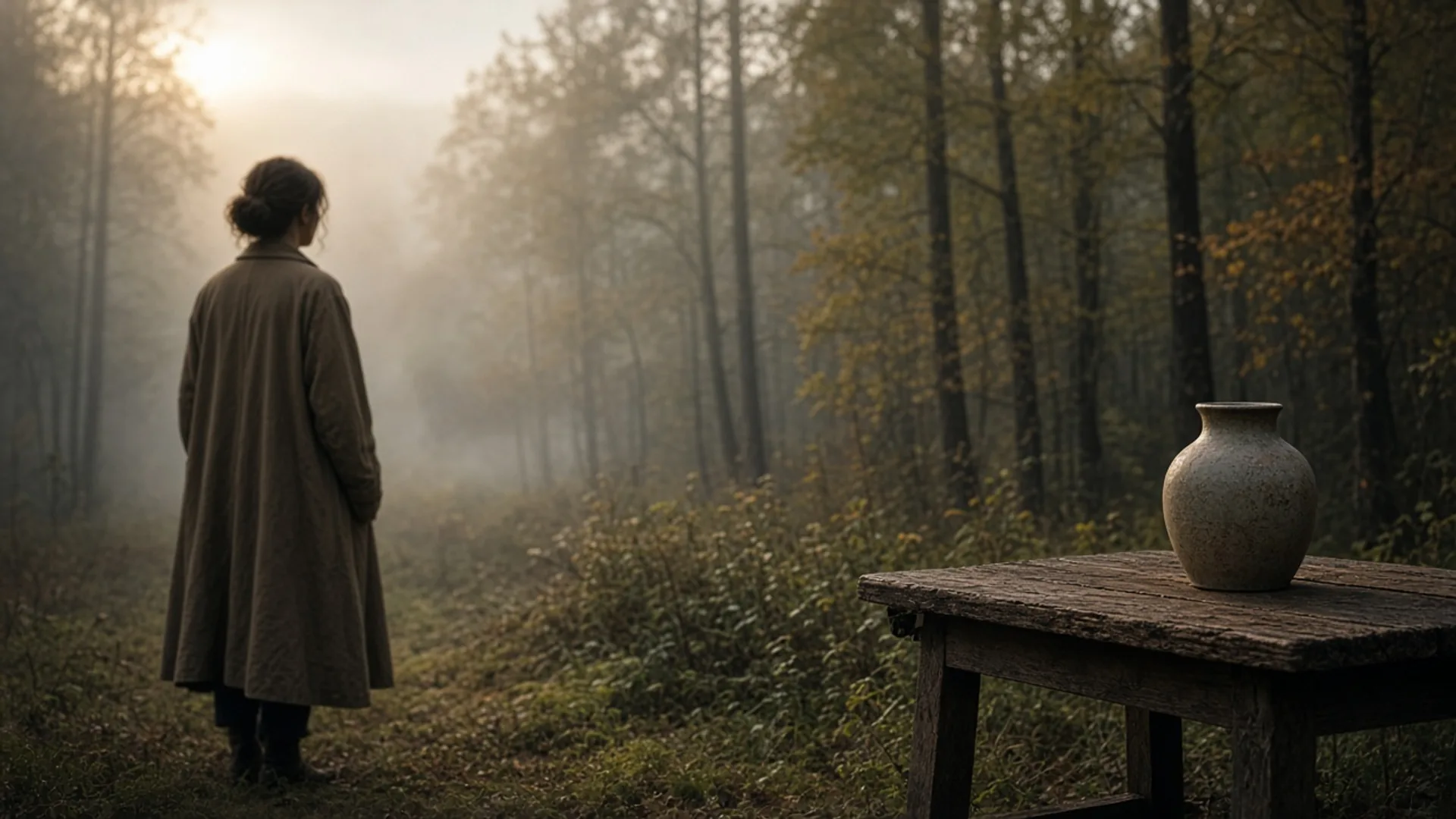
Layers are part of the Editor workflow. The Edit Model performs the image generation and modification. Keep them conceptually distinct: the Editor is the web editing interface, while the Edit Model powers image modification and generation workflows in V8.X.
Layers vs Image Prompts
Layer
Places an image into an Editor composition so you can keep editing it.
Layers vs Image References
Reference images guide generation. Layers are used inside an editing composition. If you want the model to take visual direction from a picture, use Image References. If you want to place pictures together on the canvas and continue editing, use Layers.
Retexture
In V8.X, Retexture is built into the Edit Model. It is not a separate modern V8.2 standalone tool. When you submit an edit that includes layers, the Edit Model can interpret the combined composition and continue modifying it. Style can still be guided through prompt wording, Style References, Moodboards, and Personalization when appropriate.
Practical Examples
Use Layers to place images into a composition, then submit an edit. These prompts are instructions for the combined scene.
Combine subject and background
Place a subject layer over a new environment, then submit the edit.
keep the standing figure and blend it into a quiet forest clearing with matching light
Edit direction: The composition starts from both images instead of one locked frame.
Tip: Scale the subject before submitting.
Add a specific object
Bring an extra object onto the canvas as a layer.
add the ceramic vase to the table and keep the same room lighting
Edit direction: A second image can introduce an object without starting from scratch.
Tip: Erase extra background on the object layer first.
Create a layered composition
Stack several elements, reorder them, then submit.
combine the portrait, window light, and plant into one indoor scene
Edit direction: Reordering layers changes what sits in front before the Edit Model runs.
Tip: Keep only the layers you still need.
Replace part of an image
Use a layer plus erase to replace a region, then submit the edit.
replace the original sky with the new sky layer and keep the same buildings
Edit direction: Layers can help swap a region before the Edit Model flattens the result.
Tip: Confirm the active layer before erasing.
Prepare a more complex scene
Assemble multiple elements, then ask the Edit Model to unify them.
unify the layered objects into one editorial still life with consistent shadows
Edit direction: Layers prepare the composition; the Edit Model modifies it.
Tip: Do not expect pixel-perfect compositing.
Common Mistakes
- 1
Treating Layers as Image Prompts
An Image Prompt influences generation. A Layer places an image into the Editor composition.
- 2
Expecting pixel-perfect compositing
Submitting an edit still lets the Edit Model interpret the combined result.
- 3
Erasing the wrong layer
Editor tools affect the active layer. Confirm which layer is selected first.
- 4
Confusing Layers with a standalone Retexture tool
In V8.X, Retexture is built into the Edit Model. Layers remain part of the Editor interface.
Frequently Asked Questions
What are Layers in the Midjourney Editor?+
How do I add an image as a Layer in Midjourney?+
Can I combine multiple images with Midjourney Layers?+
Can I move and resize Layers?+
What happens when I submit an edit with Layers?+
Ready to Create Your Own Images?
Try Midjourney and use Layers in the Editor to combine images into a more complex composition.