Portrait
Use a portrait to discover possible descriptions of lighting, camera perspective, clothing, and mood.
Turn an existing image into four prompt ideas and use them as starting points for new Midjourney creations.
Midjourney Describe analyzes an image and generates four prompt suggestions. The suggestions are designed to inspire new creations rather than reproduce the original image exactly.
Describe is a Midjourney feature that helps turn visual references into text-based creative ideas. Instead of starting with a blank prompt, you can give Midjourney an image and receive four different prompt suggestions.
Upload or select an image, open Describe, and let Midjourney analyze the visual reference. The result is four prompt suggestions that you can inspect, edit, or use to start a new generation.
Start with an image that contains visual qualities you want to explore. A portrait, product photo, landscape, illustration, or other visual reference can provide a useful starting point.
Describe generates four prompt suggestions for the selected image. The suggestions may emphasize different aspects of the same visual reference, giving you several directions to explore.
After reviewing the suggestions, choose the direction that best matches your goal. You can use a suggestion as a starting prompt and then change the subject, details, composition, or style.
If you want to compare the four directions, you can run the suggestions and see how each prompt develops into a different image-generation direction.
Describe produces text suggestions from an image. Image Prompts use the image itself as part of the input for a new generation.
Describe focuses on turning visual information into prompt ideas. Style Reference focuses on carrying the visual look and feel of a reference image into a new generation.
Treat the four suggestions as raw material rather than finished prompts. Keep useful visual details, remove details that do not match your goal, and add your own subject and creative direction.
Use a portrait to discover possible descriptions of lighting, camera perspective, clothing, and mood.
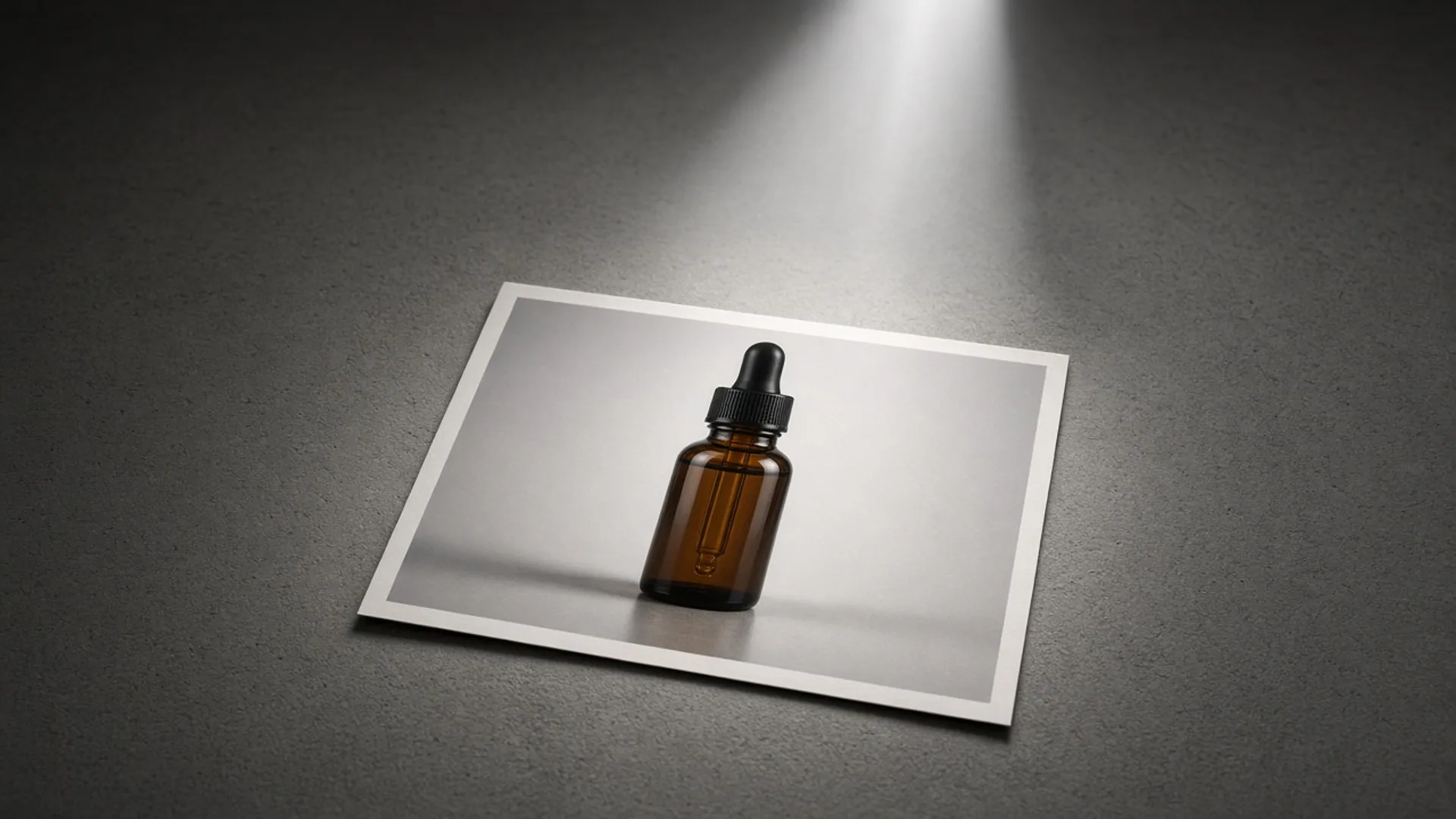
Use a product photograph to explore descriptions of materials, studio lighting, composition, and photography style.
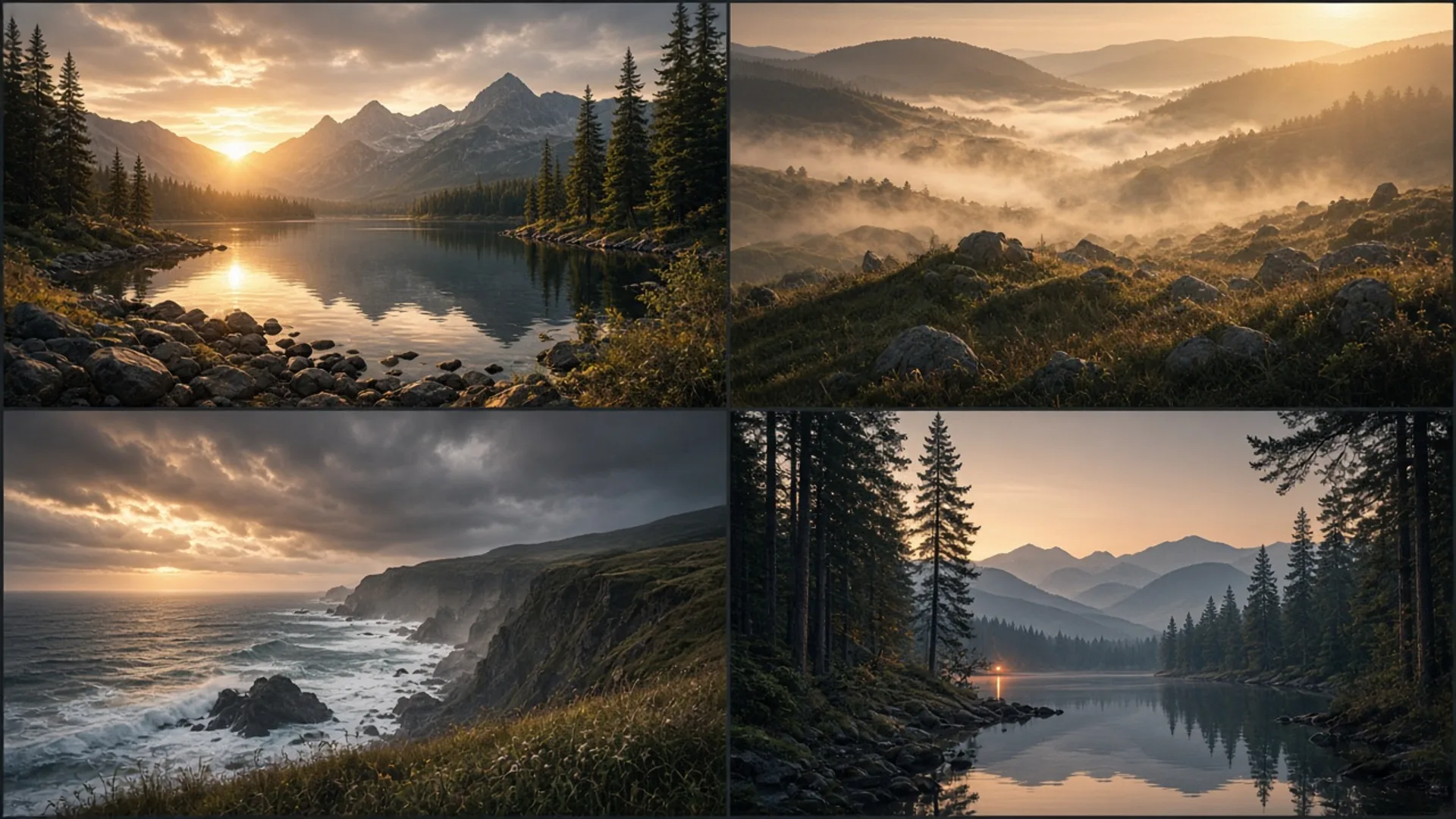
Use a landscape to discover descriptions of environment, weather, lighting, and cinematic atmosphere.
Describe is not designed to reproduce an image pixel by pixel. Its suggestions are interpretations that you can adapt into a new creative direction.
Do not assume that every word in a suggestion is important. Keep the details that support your goal and rewrite the rest.
Turn ideas, prompts, and visual references into new images with Midjourney.