Midjourney AI

Midjourney Text Generation: Prompts, Examples & Tips

Want to add words to an AI-generated image? Midjourney can render short text inside posters, signs, packaging concepts, book covers, and other visual designs. This guide explains how to request lettering, write clearer prompts, and improve results when the text is not quite right.

Text rendering is not guaranteed to be letter-perfect. Review spelling and layout before using an image in a finished design.

What Is Midjourney Text Generation?

Midjourney text generation means asking an image model to include visible words or letters as part of an image. The text becomes part of the generated visual rather than an independently editable text layer.

You can describe both the words and their surroundings: a glowing shop sign, a minimalist poster headline, a label on a coffee bag, or a title printed on a book cover. The clearer the visual context, the easier it is to communicate the intended result.

Midjourney versions 6 and later support requesting words with double quotation marks. Short phrases using standard Latin letters generally work better than long passages, although results can still contain misspellings or distorted characters.

How to Generate Text in Midjourney

Start with a short phrase, put it in double quotation marks, and describe where the lettering should appear.

  1. 1. Choose the Words

    Begin with a short word or phrase that matters most to the design. For an initial test, avoid long sentences and several separate blocks of text.

  2. 2. Put the Text in Double Quotes

    Write the exact requested words inside straight double quotation marks, such as "OPEN". Single quotation marks are not the documented syntax for requesting visible text.

  3. 3. Describe the Design

    Add the object or setting, typography style, colors, lighting, composition, and background. Describe the words as a visible part of the scene rather than an instruction detached from the image.

  4. 4. Generate, Inspect, and Refine

    Check every letter in the result. If the wording is incorrect, simplify the prompt, try another generation, or adjust the styling. Where supported, use an editing workflow to work on a problem area.

Starter Prompt

A cinematic photograph of a small bookstore at night, a glowing neon sign with the word "OPEN" above the entrance, warm window light, dark blue street, clean composition --ar 16:9

The prompt combines one short quoted word with a specific object, location, lighting, and composition.

Midjourney Text Generation Prompt Examples

Use these prompts as starting points. Change the quoted wording, visual style, or composition to suit your project. The examples illustrate prompt structure, not guaranteed output.

Illustrative design concepts. Actual generated results may differ, and lettering should be checked.

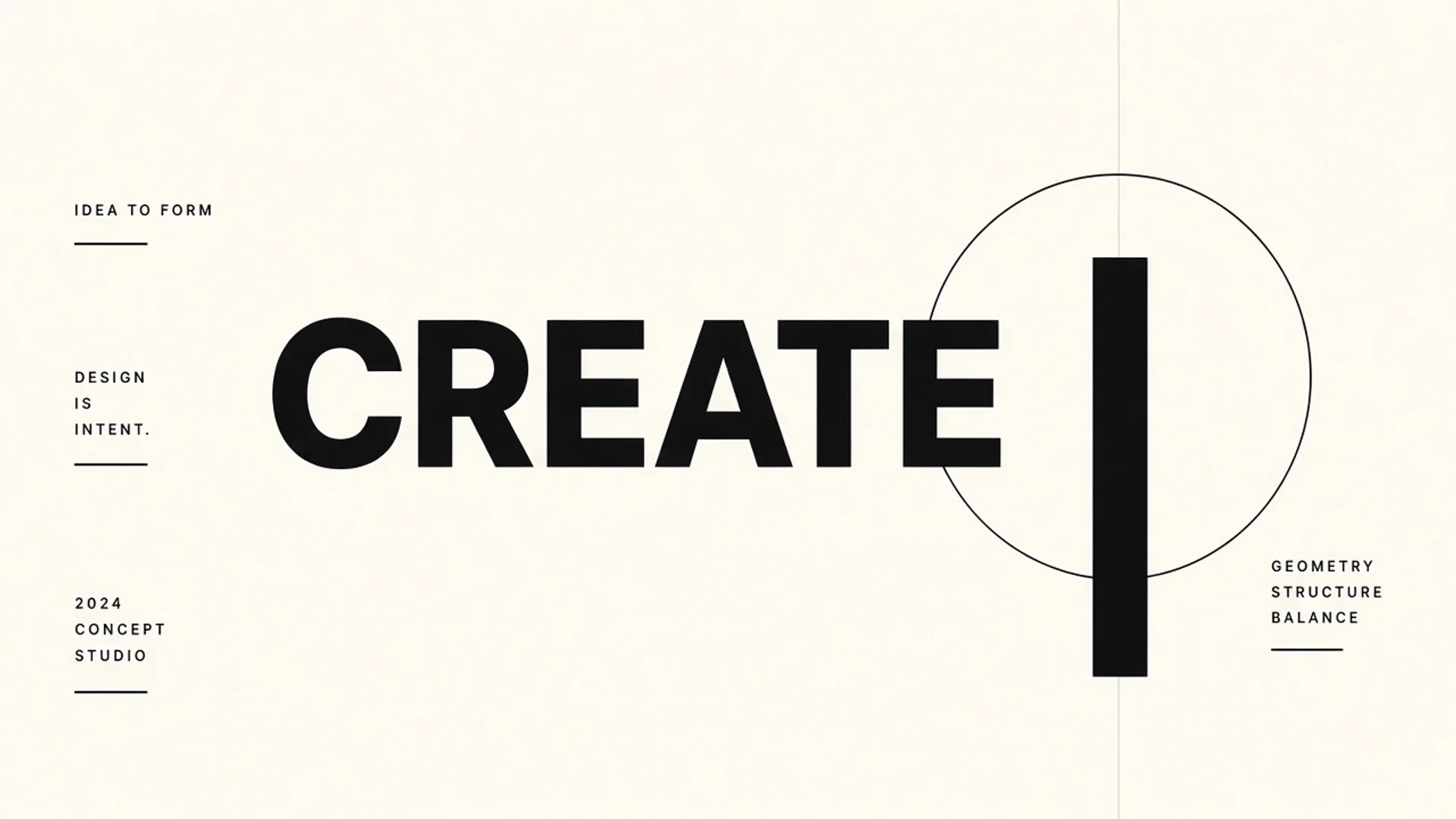
Minimalist poster concept featuring bold CREATE lettering

Minimalist Poster Typography

A short headline with a simple layout and strong contrast is a useful starting point for poster experiments.

Prompt

            A minimalist editorial poster with the word "CREATE" in large bold black sans-serif lettering, warm ivory background, precise geometric composition, generous negative space, modern Swiss graphic design --ar 2:3
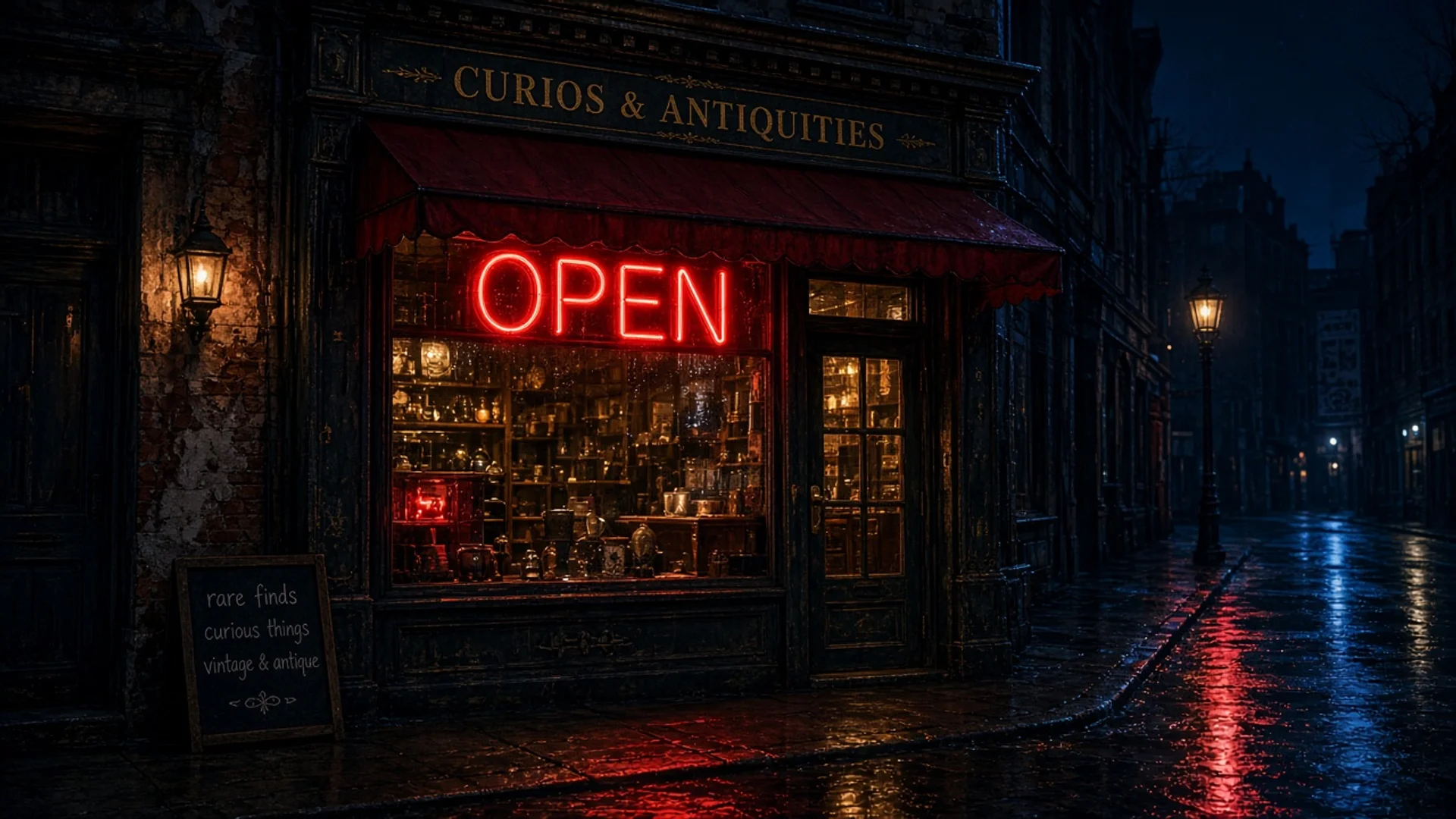
          
Nighttime storefront concept with an OPEN neon sign

Neon Storefront Sign

Give the words a physical surface and a clear place in the scene, such as a sign above a shop entrance.

Prompt

            A realistic nighttime photograph of a vintage storefront with a bright red neon sign reading "OPEN", wet pavement reflecting the light, cinematic atmosphere, sharp lettering as the main focal point --ar 16:9
          
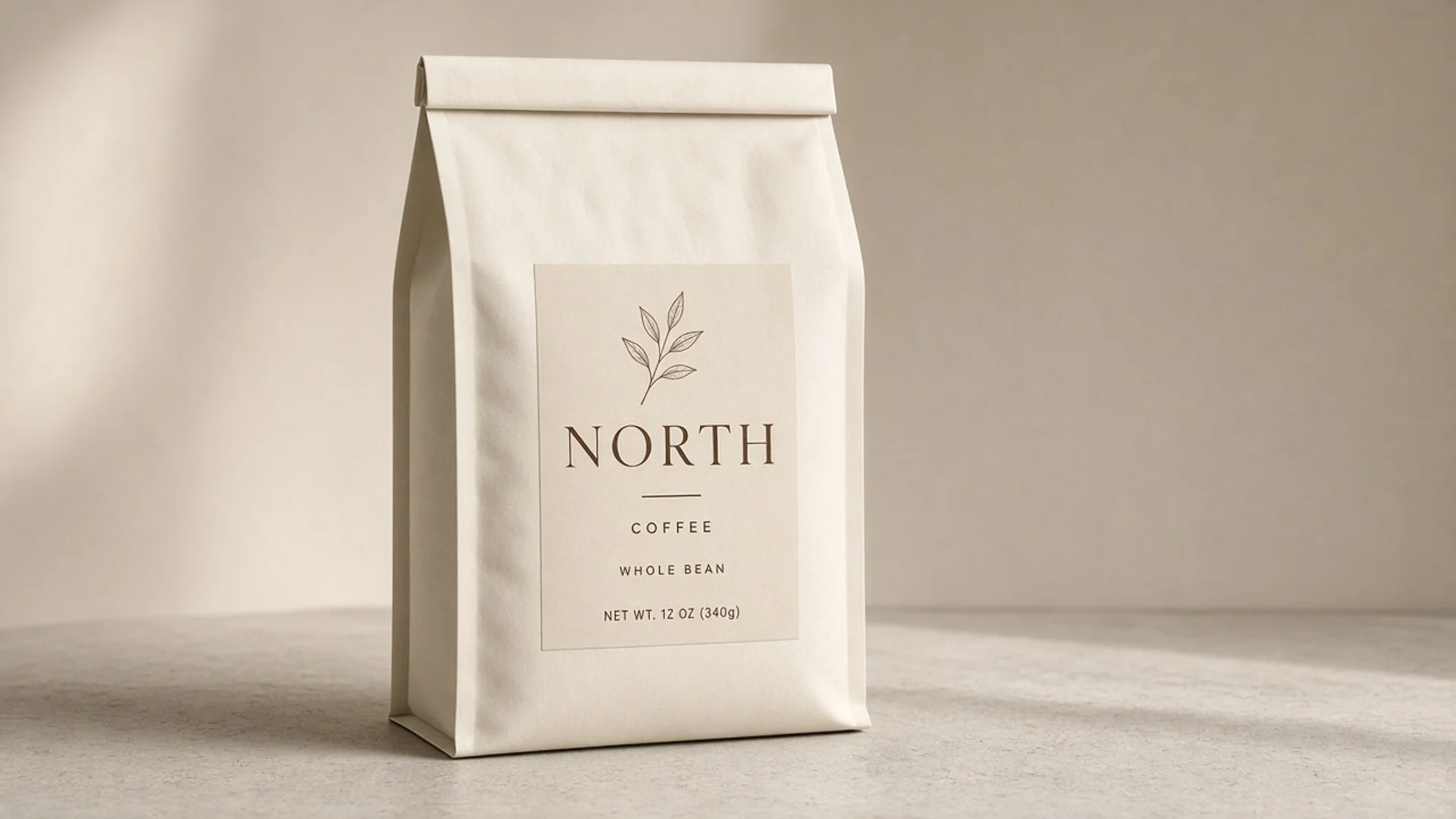
Coffee packaging concept with NORTH lettering on the label

Coffee Packaging Label

Use a short brand placeholder to explore packaging direction. Verify all lettering before presenting the design.

Prompt

            Studio product photograph of a matte cream coffee bag with a simple front label reading "NORTH", elegant dark brown typography, minimal packaging design, soft side lighting, neutral background --ar 3:4
          
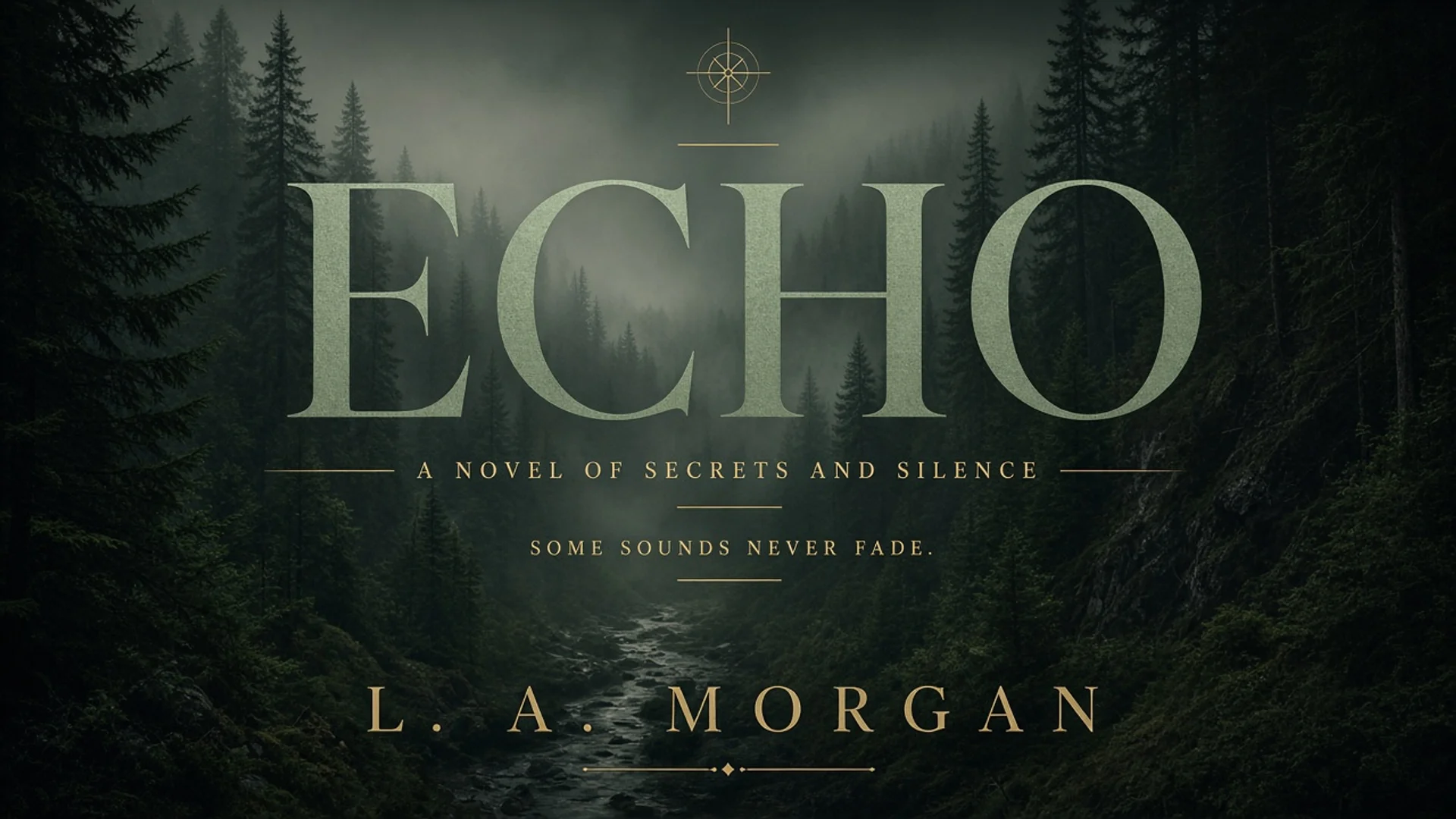
Mystery book cover concept featuring the title ECHO

Book Cover Lettering

Describe the title treatment and surrounding artwork together so the typography fits the overall cover.

Prompt

            A contemporary mystery novel cover with the title "ECHO" in large elegant serif lettering, atmospheric foggy forest, deep green and charcoal palette, balanced title placement, professional editorial composition --ar 2:3
          
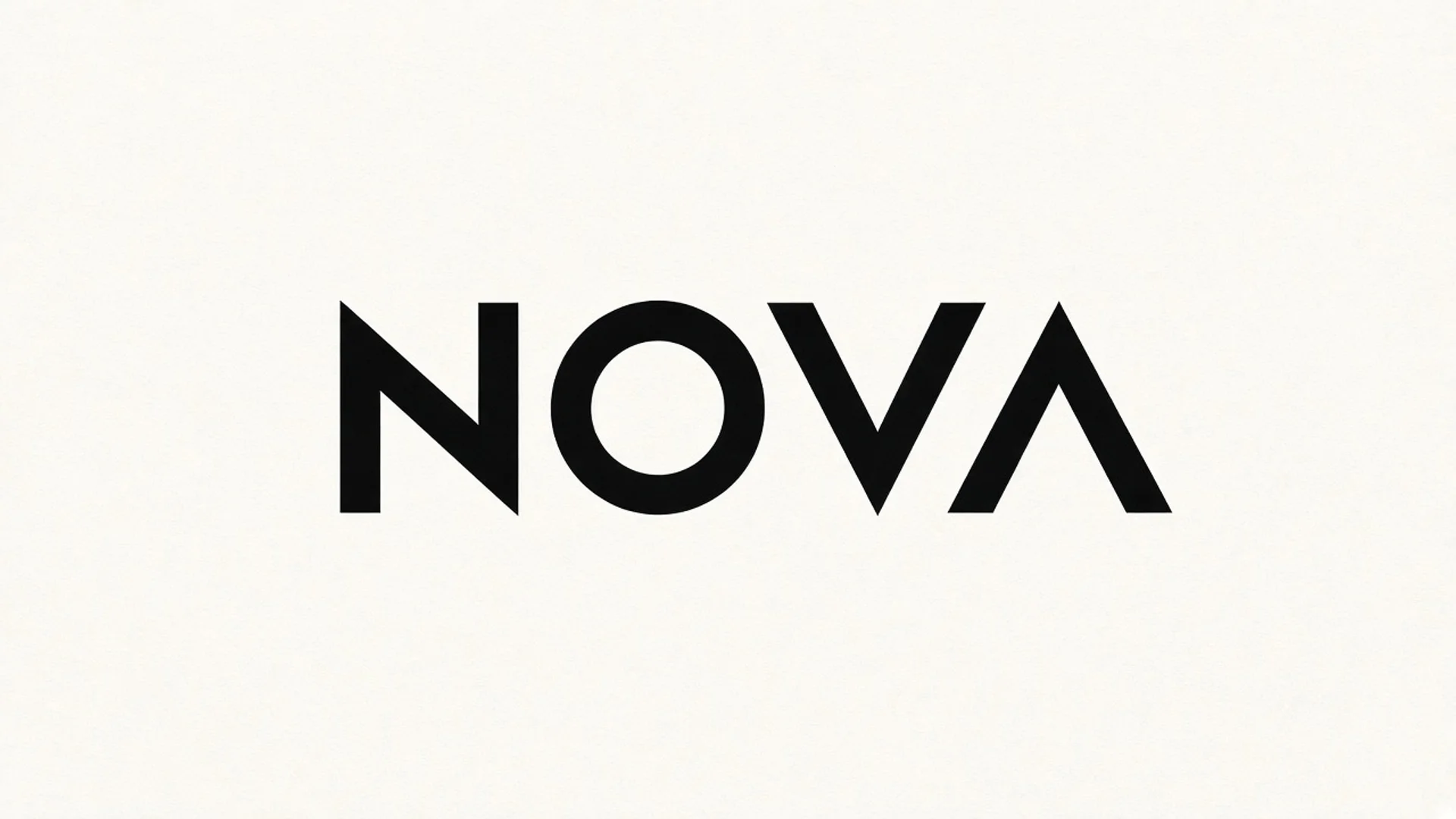
Minimal wordmark concept featuring NOVA lettering

Brand Wordmark Concept

Explore wordmark directions as visual concepts. For a final logo, redraw and verify the letters in a suitable design tool.

Prompt

            A clean visual identity concept featuring the word "NOVA" as a bold geometric wordmark, black lettering on a warm white background, refined spacing, minimal presentation, centered composition --ar 16:9
          
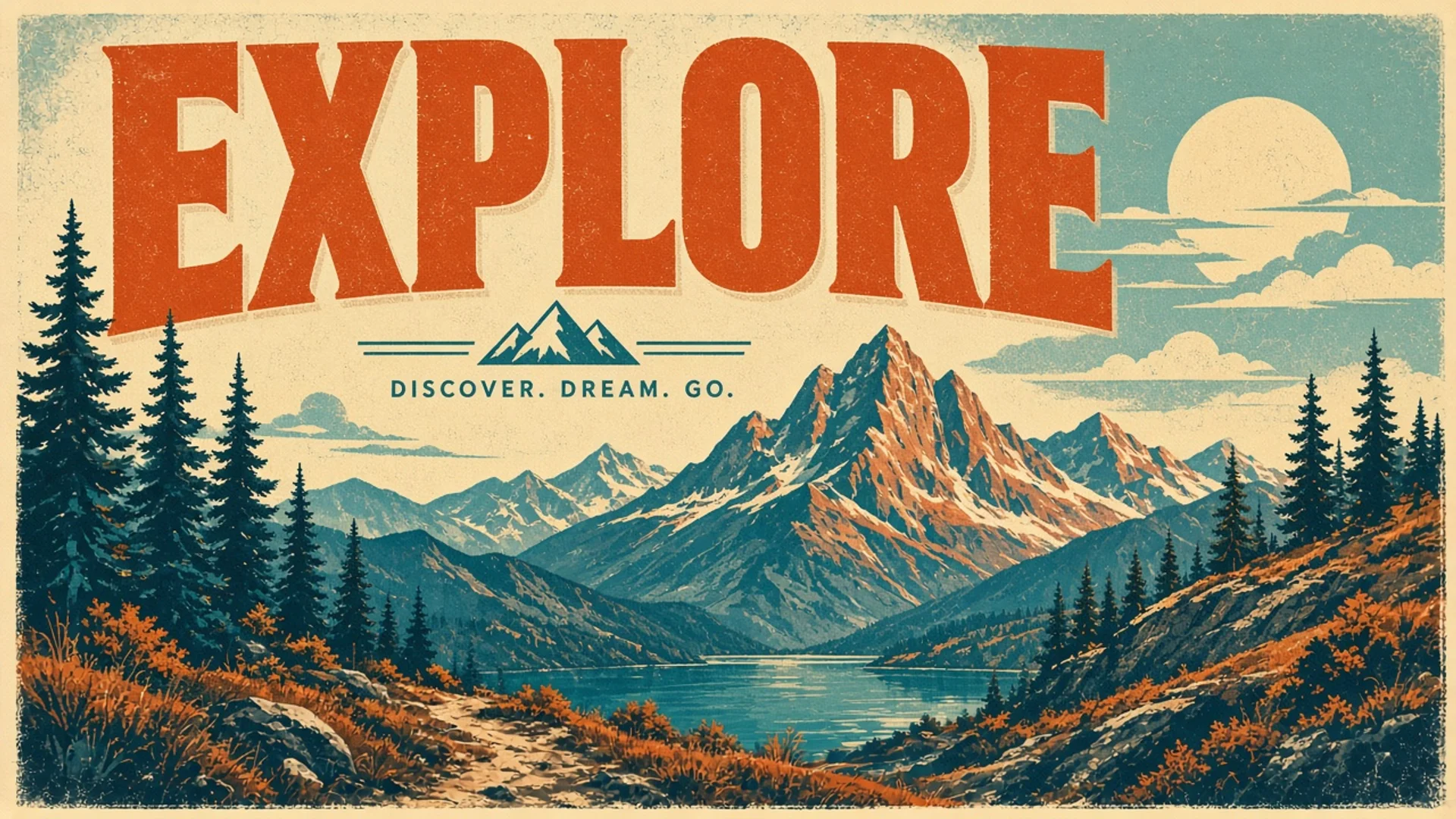
Vintage travel poster concept with EXPLORE lettering

Vintage Travel Poster

Combine the requested text with a distinctive illustration style, color palette, and poster composition.

Prompt

            A vintage illustrated travel poster featuring the word "EXPLORE" in large retro display lettering, sunlit mountain landscape, warm orange and teal color palette, screen-print texture, balanced poster layout --ar 2:3
          

Copy a prompt into a compatible Midjourney creation interface and inspect the result. Model versions and available controls may affect how the prompt is interpreted.

Typography and Layout Tips for Midjourney

Text prompts work best when the lettering has a clear role in the image. These techniques can improve clarity, but they cannot guarantee exact spelling.

Keep the Text Short

Start with a single word or a brief phrase. Longer text creates more opportunities for missing, repeated, or incorrect characters.

Describe the Lettering Style

Try terms such as bold sans-serif, elegant serif, handwritten lettering, neon tubing, or vintage display type. These describe the intended visual appearance without requiring a specific installed font.

Give the Words a Clear Location

Specify whether the words belong on a sign, label, cover, poster, wall, or other surface. A clear location helps connect the lettering to the rest of the composition.

Use Contrast and Negative Space

A simple background and strong contrast can make the intended words easier to distinguish. Reserve enough room around the headline rather than surrounding it with competing details.

Choose a Suitable Aspect Ratio

Portrait compositions can suit posters and book covers, while wider compositions may suit storefront scenes and horizontal signs. Aspect ratio influences layout, not spelling accuracy.

Review the Final Design

Even an attractive result can contain a wrong letter. Check spelling, legibility, spacing, and brand details before publishing, printing, or sharing with a client.

How to Fix Incorrect Text in Midjourney

Misspelled or distorted lettering is a common limitation of image generation. Try the following adjustments before treating a result as final.

Simplify the Requested Words

Reduce a long headline to one or two important words. If the image contains several text elements, test the most important element first.

Make the Prompt More Explicit

Use phrasing such as a sign with the word "OPEN" or a poster with the text "CREATE". Describe where the words appear and what they should look like.

Try Raw or Lower Stylize

In compatible Midjourney interfaces and model versions, Raw or a lower Stylize setting may help the prompt influence the result more directly. Neither option guarantees accurate text.

Generate Another Variation

Try a new result with the same short phrase or a simpler surrounding scene. Compare the lettering rather than judging only the overall image.

Use Editing Tools Where Available

An available image-editing workflow may help revise a small problem area. Check the actual editing controls supported by your interface and model version.

Finish Critical Text in a Design Tool

For exact product labels, prices, legal copy, contact details, or final brand assets, use a conventional design editor to place and verify the text. AI-generated lettering should not replace final proofreading.

Midjourney Text Generation FAQ

Can Midjourney generate text inside images?+
Yes. Midjourney versions 6 and later support requesting visible words or phrases by placing them inside double quotation marks in a prompt. The generated lettering may still contain errors.
How do I tell Midjourney exactly what words to write?+
Place the requested words inside straight double quotation marks and describe where they should appear. For example, ask for a neon sign with the word "OPEN". Exact spelling is not guaranteed.
Why does Midjourney misspell words?+
Midjourney generates visual image content rather than typesetting a separate editable text layer. Letters can become distorted, omitted, or repeated, particularly in long or complex text.
Can Midjourney create posters with typography?+
Yes. You can request posters with short headlines and describe the typography, colors, composition, and background. Review the result carefully before using it for print or publication.
Does Raw Mode make Midjourney text perfectly accurate?+
No. Raw can reduce automatic styling and may help the model follow prompt details more closely, but it does not guarantee exact lettering.
Can I use Midjourney-generated text for a final logo or product label?+
You can explore visual concepts with Midjourney, but final logos, packaging labels, and other accuracy-critical assets should be checked and refined in a suitable design tool.

Create Your Next Image with Midjourney

Start with a short quoted phrase, describe the design you want, and experiment with different visual directions. Check the lettering before using your image in a finished project.